Use UNIHUB RUNner from ChatGPT and Claude
UNIHUB RUNner lets you place goals in UNIHUB, have AI work on them, and confirm whether they are done with checks. Connect it to ChatGPT or Claude to read and update your RUNner goals, notes and checks from your usual conversation. AI usage stays on your own ChatGPT or Claude plan.
Screenshots show the Japanese screens; the English screens have the same layout.
Who can use it
Members of a UNIHUB organization where RUNner is available. With an account that only belongs to organizations where it is not available, the consent screen shows "RUNner is not available right now" and the connection is not made. Ask your organization's admin about the conditions for using RUNner.
How to add it
Claude (claude.ai and desktop)
- In Settings → Connectors, find “UNIHUB RUNner” and add it (if it is not listed, choose “Add custom connector” and enter the MCP URL below)
- The UNIHUB login screen opens. Sign in with your usual account
- Review the consent screen and choose “Allow”
Claude connector directory page: https://claude.ai/directory/connectors/unihub
ChatGPT
- In the plugin (app) directory, find “UNIHUB RUNner” and add it
- The UNIHUB login screen opens. Sign in with your usual account
- Review the consent screen and choose “Allow”
ChatGPT plugin directory page: https://chatgpt.com/plugins/plugin_asdk_app_6acd56c38dfc81918f57dd42941f3cec
MCP URL: https://hub.uni-core.jp/api/run/mcp (signs in with OAuth; there is no key to paste)
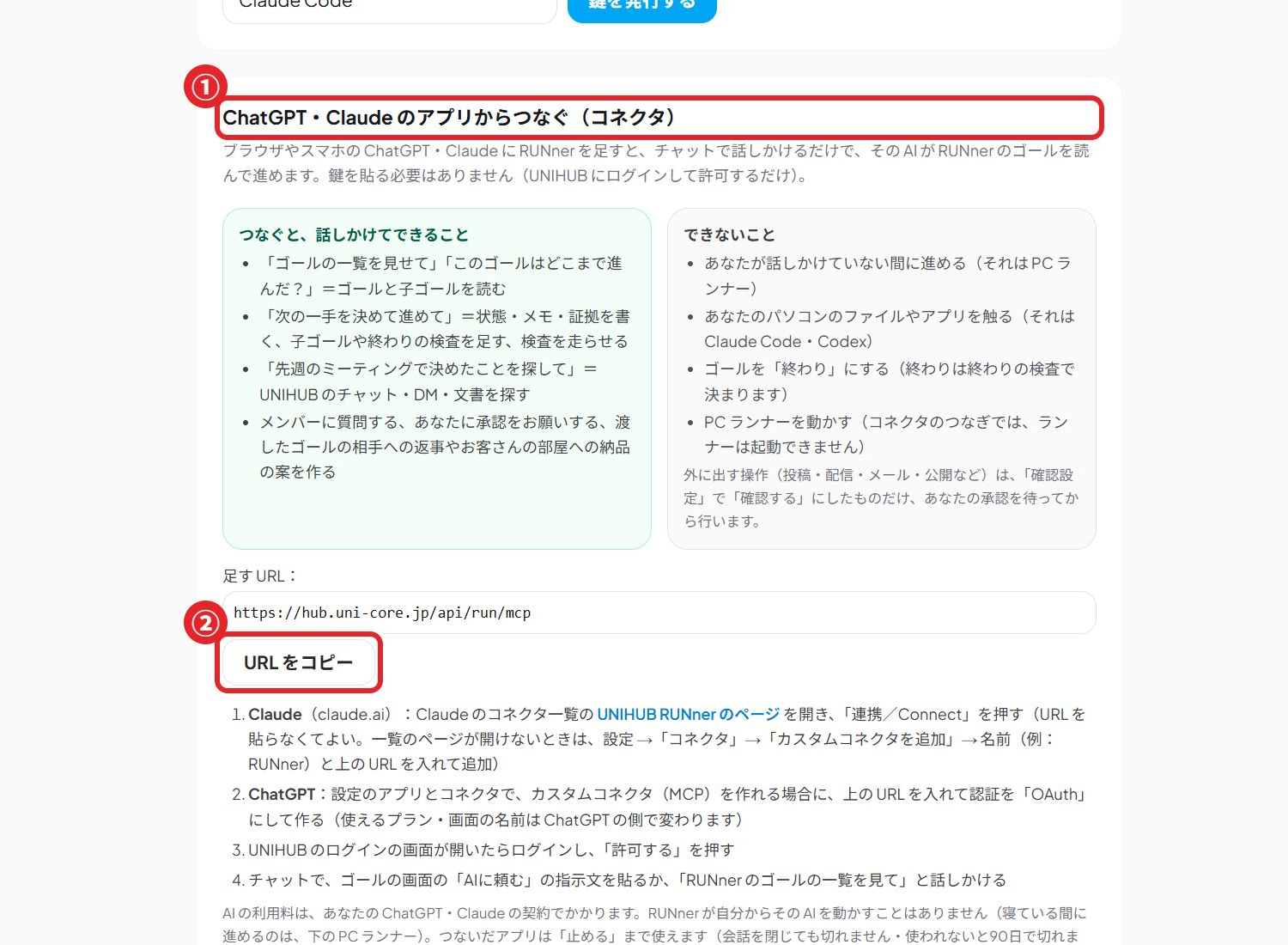
What it can do
Read
List goals; goal context (definition of done, current state, rules, checks, notes); templates; search inside UNIHUB; approval results; members and their answers; reply drafts; goal breakdowns
Start
Create a new goal; start a request on a goal (the AI in this conversation works on it, or it runs on your PC with Claude Code or Codex; uses one of this month's requests)
Write (inside your organization)
Add notes, evidence, checks and sub-goals; overwrite a goal's current state and memo; save drafts of templates, replies and goal breakdowns; request approval; run checks
Business tools (Focus and above, from 2026-10-23)
Read and propose organization knowledge; list, read and upload files in the goal's drive; save form drafts and read responses; read customers linked to the goal, add notes and propose updates; read metrics, report values and propose metrics (proposals take effect only after a person adopts them)
Reaches people
Ask a member a question; reply in a handoff DM; post a delivery proposal to a customer room. Anything your organization's approval rules cover cannot go out until a person approves it
- You only see the goals and channels you can already see in UNIHUB
- A goal becomes done only when every check passes. The AI cannot mark it done by itself
- There is no feature that deletes goals or messages
- Reporting progress, running checks, requesting approval, asking members, saving drafts and delivering work are used as the continuation of a job started with “Ask AI” on the UNIHUB screen (they need the job number included in that job's prompt)
What it cannot do (compared with the RUNner PC app)
- Work while you are not talking to it (working while you sleep is what the RUNner PC app does)
- Touch files or apps on your computer (that is the RUNner PC app, or Claude Code / Codex on your computer. Public pages you put in the checks are fetched by the UNIHUB server)
- Work on a job that runs on your PC from the conversation (the PC app that picked it up does the work; from the conversation you can only read and stop it)
The RUNner PC app works without connecting the connector. It is a separate way to connect: run the app on your computer and ask from “Run on PC” on the goal screen, or ask in the conversation to run it on your PC. You can also combine them, for example shaping goals from the connector on your phone and letting the RUNner PC app work while you sleep.
Example prompts
- “List my RUNner goals”
- “Tell me the current state of the ◯◯ goal and what to do next”
- “Add a note to this goal: wrote the first draft of the landing page”
- “Search the chats for anything about invoices”
How to disconnect
- Sign in to UNIHUB and open RUNner → “Connect AI”
- In the “Issued keys” list, choose “Revoke” on the connection you want to stop (ChatGPT or Claude)
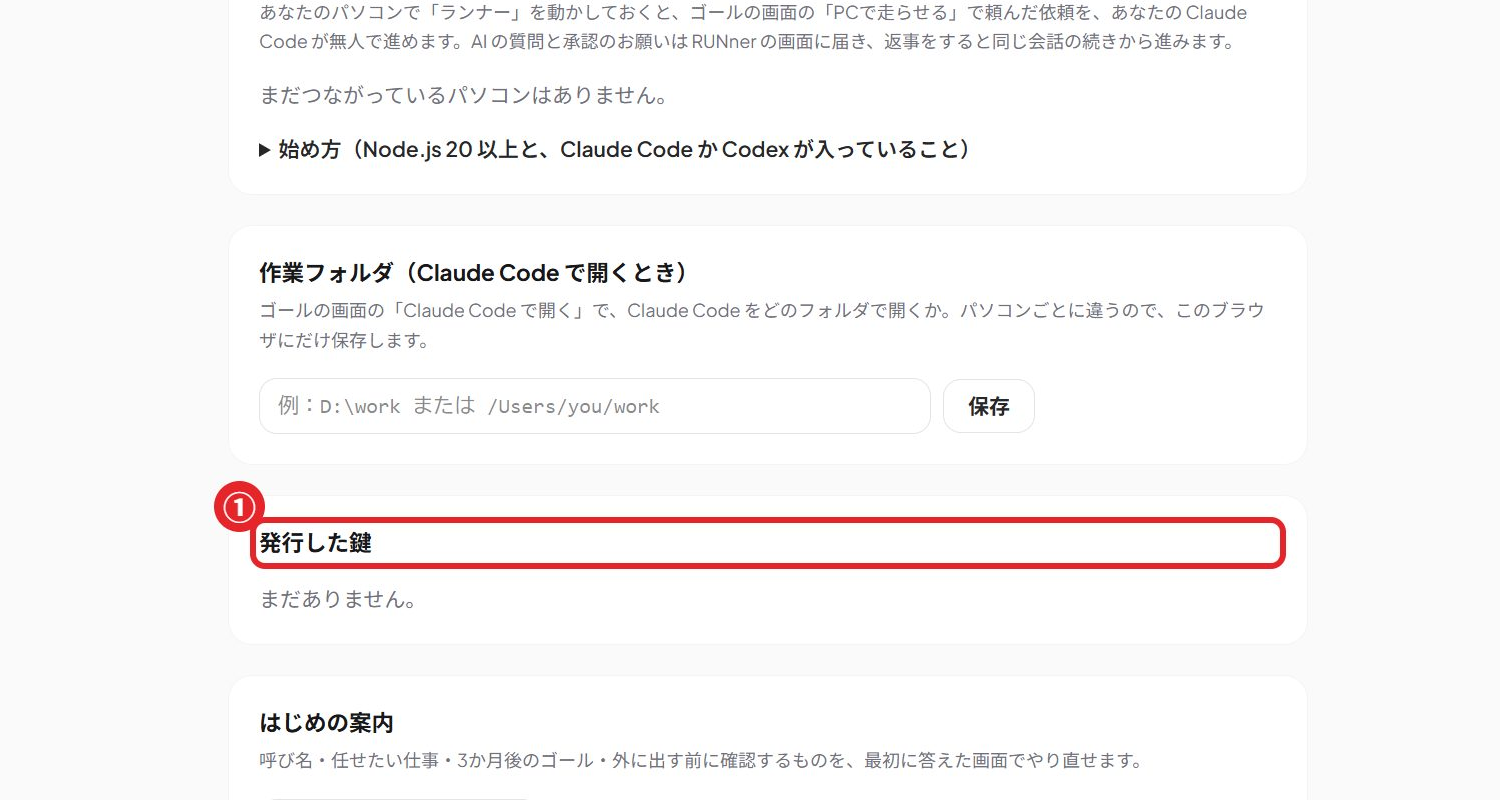
A stopped connection stops working immediately. Removing the connector in ChatGPT or Claude does not remove the connection on the UNIHUB side, so stop it in both places.
Troubleshooting
- “RUNner is not available right now”: your account is not in an organization where RUNner is available. Ask your organization's admin
- The connection stopped working partway: the connection was stopped, or it was not used for 90 days. Sign in again from the connector
- The AI says it is “waiting for approval”: your organization's approval rules require approval for that action. Approve or reject it on the goal screen
Support: support@uni-core.jp (contact form) · Privacy policy (Japanese; Article 4, item 4) · Terms of service (Japanese)
Operated by ZUBOLAND Co., Ltd., Japan.