How to use automated webinars
How this is used in practice2-1 Automated webinars3-2 Internal training with recorded webinars
Screenshots show the Japanese screens; the English screens have the same layout.
Stream a recorded video as a "live" session on a fixed schedule. Registration page, reminders, limited-time offers, and analytics all live inside UNIHUB.
What are automated webinars?

Stream a recorded video as a "live" session
Play a pre-recorded YouTube video (unlisted) or Vimeo video as a "live stream" at the date and time you choose. Viewers watch it as a live session with no rewind or pause, and anyone who joins late starts from the point currently playing. You can run the webinar as many times as you like without presenting each time.
Everything from registration to analytics runs automatically
Registration page → confirmation email → reminder emails (the day before, 1 hour before, and at start) → live-style playback → real-time chat → limited-time offer → attendance and viewing analytics. The whole flow runs on its own.
Viewers don't need an account
Viewers don't have to create a UNIHUB account. They register with just a name and email address, and a personal viewing link is sent to them by email.
Create and publish
Create one (3 minutes)
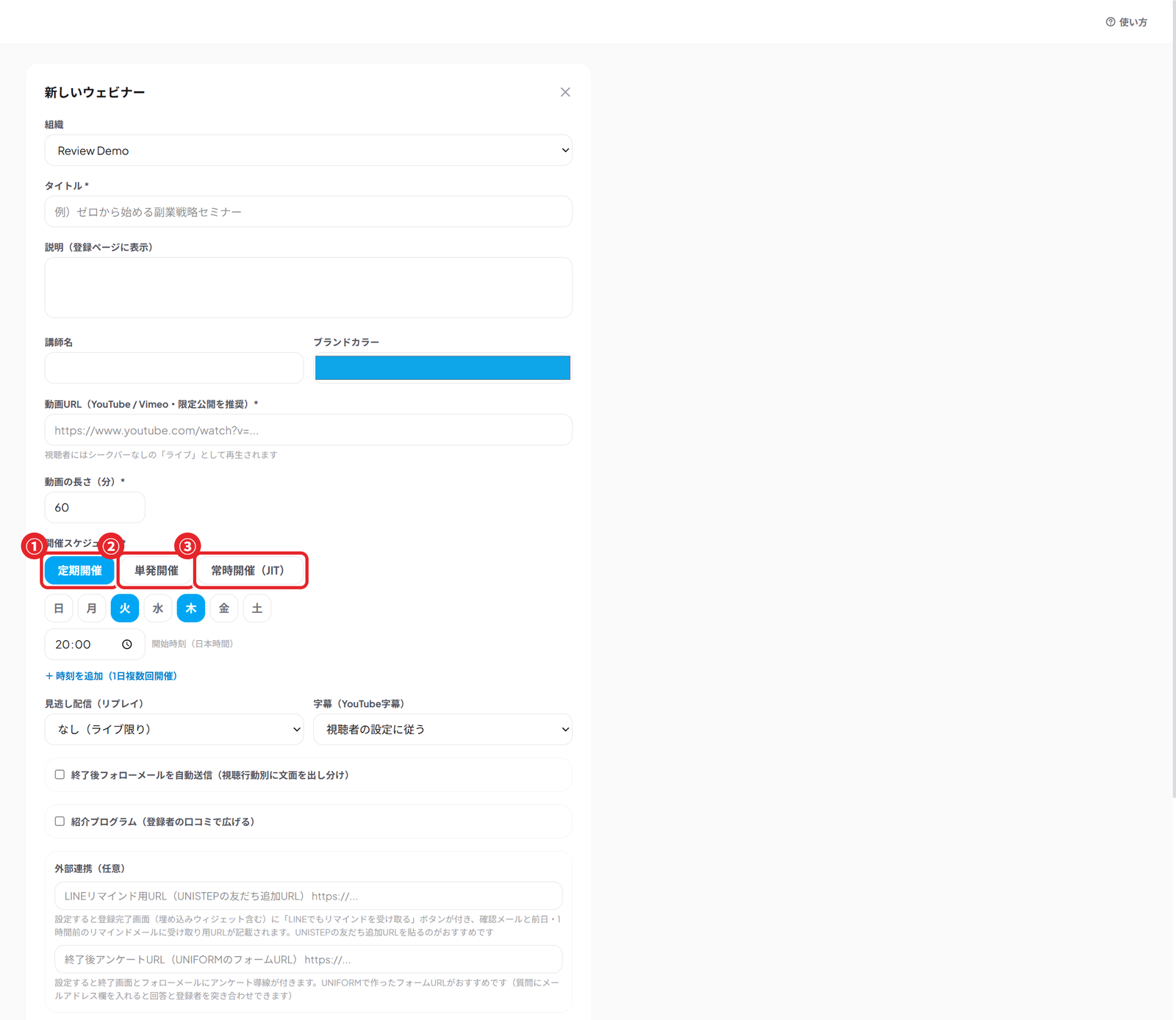
Go to the "Business" page → "Automated webinars" → "New webinar". Enter a title, the video URL (unlisted YouTube or Vimeo), the video length, and the schedule. Choose one-time, recurring (for example every Tuesday at 8 PM; multiple times per day is fine), or always on (JIT).
Plan it with AI (webinar planning AI)
Go to "Automated webinars" → "Plan with AI" and type a topic in a few words. The AI drafts 3 title options, the registration page description, a minute-by-minute script, suggested timing for CTAs and polls, and 3 invitation emails all at once. Click "Use this plan in the form" and the content is filled into the create form, so you don't have to start from scratch.
Always on (JIT): show it right after registration
This mode always shows visitors a slot that "starts in X minutes" (10–60 minute intervals; you can also limit the hours when registration is open). The shorter the wait between registration and viewing, the higher the attendance rate, so it works well for traffic from ads and social media. A session is created automatically only when someone registers.
Set up timeline events (offer / file download / poll)
You can set events that "fire automatically X minutes after start." (1) Limited-time offer: a bonus button with a countdown of the remaining time (for example, 20 minutes only, starting 40 minutes in). (2) File download unlock: show a download link only to people who have watched this far. (3) Poll: ask a question during the stream, viewers answer by choosing an option, and a results bar updates in real time. When voting closes, the final results are announced in the chat as a moment the whole audience shares. Clicks and answers are all measured automatically.
Chat replay (a lively live even with no one on duty)
Import the comments from a session you have already run, and they replay at the same moments in future live sessions. In the webinar list, click "Chat replay" → choose a past session → import. They blend naturally with comments from real viewers.
Customize the screen
As the host you can set the brand color, the pre-start screen message (below the countdown), the end screen message, whether YouTube captions are shown, and how long the replay stays available.
Publish and share the registration URL
Click "Publish" → "Copy registration URL". This URL is a public page anyone can open, so you can paste it as is into social media, LINE (Japan's most widely used messaging app), newsletters, and ads. You can change the content or schedule of an existing webinar at any time from "Edit" and reuse it.
Embed it on your own site (widget)
Click the "Embed" button to copy an iframe code. Paste it on your website or landing page and the registration form works right there. Registrations through the embed are tracked automatically with "embed" as the source.
Measure by channel with UTM
Add a parameter such as ?utm_source=twitter to the end of the registration URL before sharing it. Under "By source" in the analytics panel you can compare registrations, attendance rate, and offer clicks for X, Instagram, ads, and so on.
Referral program (grow through word of mouth)
When enabled, the registration confirmation screen and the confirmation email show "your personal referral link." Set a target and a reward, such as "refer 3 people and get an exclusive bonus," and a reward email is sent automatically to referrers who reach it.
Integrations (LINE reminders / post-webinar survey)
Set these in the "Integrations" section of the create form. (1) LINE reminders: paste a LINE add-friend URL, such as one from UNISTEP, and the registration confirmation screen (including the embed widget) gets a "Get reminders on LINE too" button. The receiving URL is also included in the confirmation email and in the day-before and 1-hour-before reminder emails, which lifts attendance on the day. (2) Post-webinar survey: paste a form URL, such as one from UNIFORM, and a survey link is added to the end-of-viewing screen and the follow-up email. (If you include an email address field in the form's questions, you can match responses to registrants.)
Grow your list with lead magnets
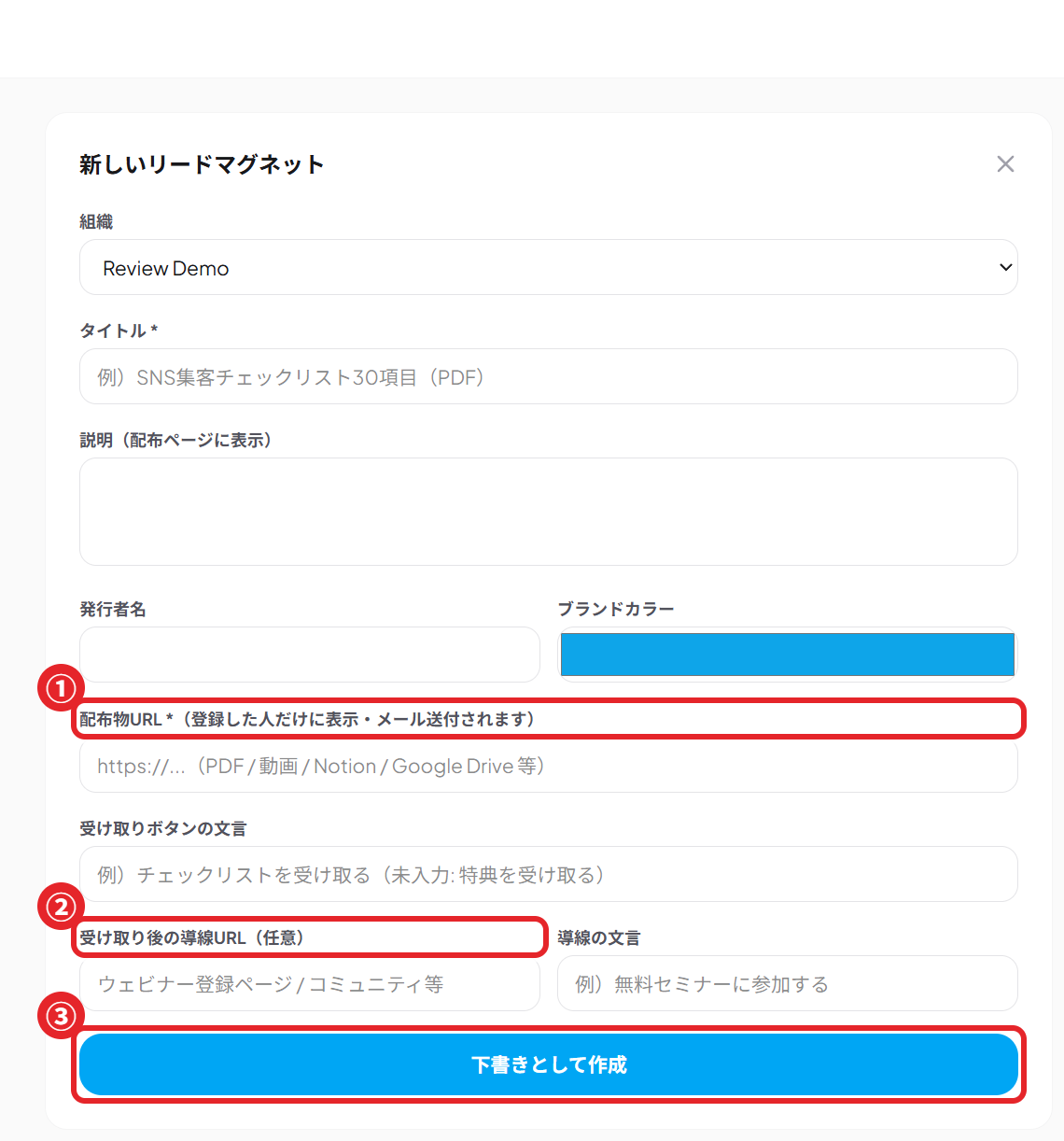
Go to "Business" → "Lead magnets" to publish a download page at /m/xxx for a free gift (PDF, video, or template). The gift is delivered automatically in exchange for a name and email address. If you set the webinar registration page as the next step after the gift is received, you have the classic funnel: gift → list → webinar → sale. Leads can be downloaded as CSV.
The viewer's experience
Starts automatically at the scheduled time
The viewing page shows a countdown to the start, and playback begins automatically at the scheduled time. Anyone who joins late sees the stream "from the point that is live right now" (no rewind, just like a real live event).
Real-time chat
Viewers can chat with each other and with the host. The number of participants is shown in real time, creating the feel of a shared live event.
Volume control and replay
Viewers can adjust the volume on the screen. If the replay is enabled, they can watch the replay after the session ends for the period you set (24 hours, 7 days, or no limit).
Per-registrant replay deadline (time-remaining bar)
If the host sets a personal deadline such as "72 hours after registration," a time-remaining bar appears at the top of the replay screen. The closer the deadline, the stronger the reason to watch now. This is a standard evergreen launch technique.
Analytics
Registrations, attendance, and clicks are counted automatically
For each webinar you can see registrations, attendance (attendance rate), and offer clicks in a list. You can also see how many people came to each session.
Funnel analytics dashboard
Click the "Analytics" button on a webinar to see the funnel from registration → attendance → finished (watched 80% or more) → CTA click, plus a retention graph (what percentage was still watching at each minute). You can see at a glance where people lost interest, which feeds directly into improving the video's structure and the timing of your offer.
Compare sessions
Which keeps people longer, Tuesday at 8 PM or Saturday at 10 AM? Compare registrations, attendance, finishers, average watch time, and clicks for each session in a table. Click a row to see that session's retention curve.
Poll and file download analytics
The analytics panel shows the results of polls run during the stream (a vote bar for each option) and the number of file downloads and unique downloaders. After the event, you can look back at which materials were in demand and how engaged the audience was.
Follow-up emails by viewing behavior (automatic)
Enable this in the create form, and about 1 hour after the session ends, emails tailored to each person's viewing behavior are sent automatically. People who finished get a thank-you plus the offer; people who left partway get a replay link that "resumes from where they left off"; no-shows get the replay or details of the next session; and people who clicked the offer get the offer details first. Behavior-based segmented sending runs fully automatically.
Automatically invite finishers to an exclusive channel
In the follow-up email settings, turn on "Invite finishers to an exclusive channel" and choose the channel. Only people who watched to the end get an invite link to that channel (tied to their email, valid for 14 days) attached automatically to the completion email. One setting lets you grow a community made up only of your most engaged people. We recommend a private channel as the destination.
AI follow-up (AI personalizes emails to people who clicked)
In the follow-up email settings, turn on "AI follow-up" and the AI writes the opening of the follow-up email individually for each person who clicked the offer link, based on their watch time and chat messages (uses the organization's AI key). The offer and replay links stay fixed from the template, so there is no risk of the AI sending a wrong URL.
AI generates an FAQ from the chat log
Click the "Generate FAQ" button in the webinar list and the AI analyzes the questions asked in that webinar's chat and drafts a set of frequently asked questions and answers. Use it as is to improve your next script or to add an FAQ to the registration page and invitation emails.
Tips for improving
If attendance is low, try changing the start time (test several times with a recurring schedule). If the click rate is low, adjust the wording or timing (X minutes in) of the offer. Just edit and save, and the changes apply from the next session.
Gift giveaways and step messages
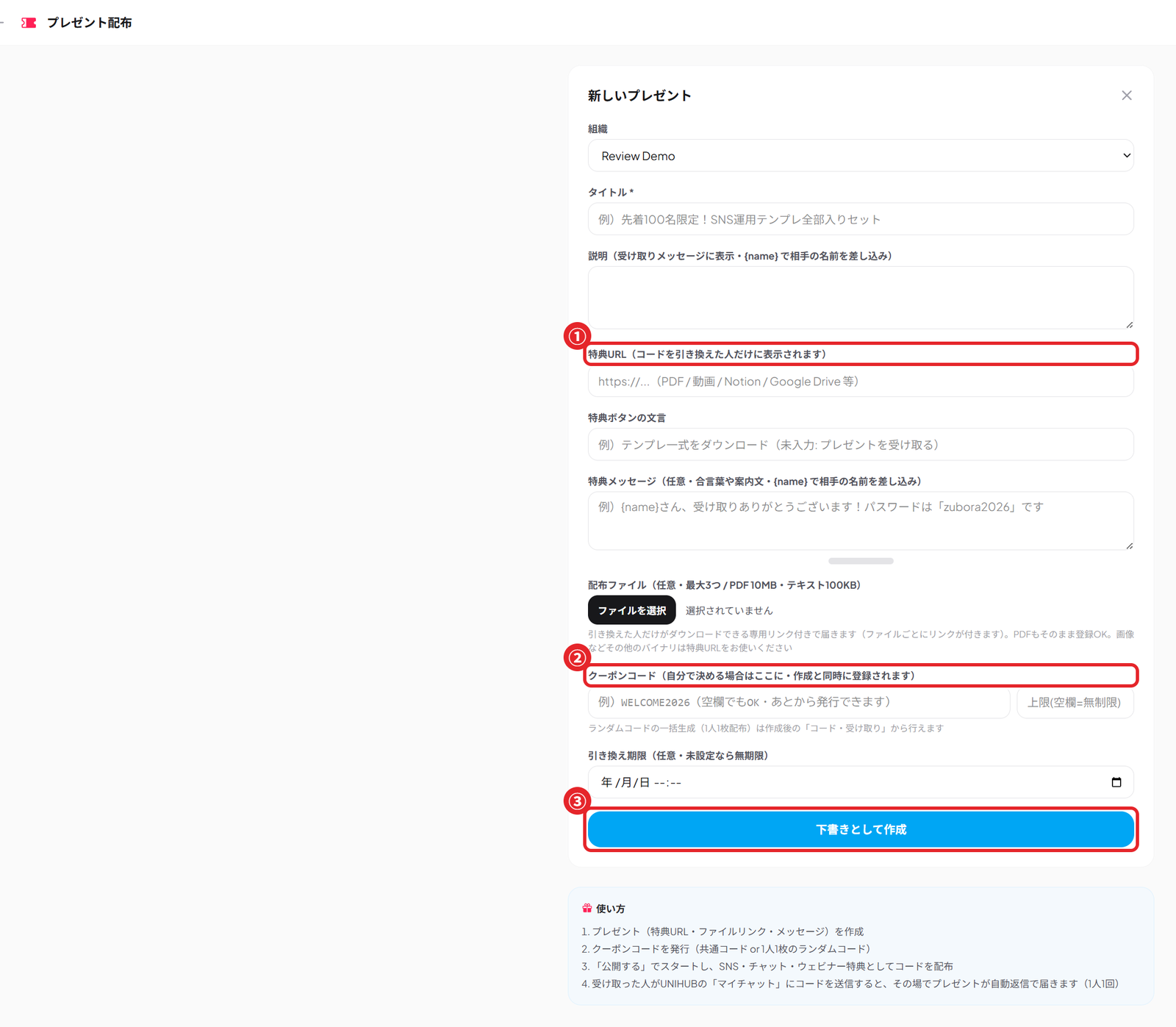
Hand out gifts with coupon codes
Go to "Business" → "Gift giveaways" to create a gift that bundles a bonus URL, a reward message such as a passcode, and text document files (skill MD files, templates, and so on; up to 3), and then issue coupon codes. There are two kinds of codes: a shared code you choose yourself (with an optional usage limit; you can set it up in the create form at the same time) and randomly generated codes in bulk for one-per-person distribution (up to 100 per batch). Use them for webinar bonuses or prizes in social media campaigns.
Redeeming is as simple as sending the code to My Chat
Recipients just send the code they received to "My Chat" in UNIHUB. The gift arrives on the spot as an automatic reply (once per person; recipients can be on the Free plan with no AI key). Files come with a dedicated link that only people who redeemed the code can download. Codes that don't exist and ordinary notes get no reaction at all, so My Chat stays as safe to use as before.
Name insertion and distribution management
Write {name} in the description or reward message and it is replaced automatically with the recipient's name. You also get a redemption deadline, a usage limit, a redemption history (CSV export of name, email, and code used), and a copyable announcement text for social media.
DM step messages (the chat version of an email sequence)
Go to "Business" → "Broadcasts" → "Step messages" to build a scenario that sends automatically "X days and X hours after enrollment" (up to 10 steps, with {name} insertion). In addition to enrolling existing members in bulk, turning on "Auto-enroll new members" puts everyone who joins the organization after the start onto the scenario automatically. Combine it with the permanent sign-up URL (Settings → Invite members) and onboarding DMs for new members run fully automatically. Messages are processed every 5 minutes and arrive as normal DMs.
Marketing dashboard and weekly AI report
Go to "Business" → "Marketing dashboard" to see the key numbers from UNISTEP, UNIREACH, UNIECHO, and UNICORE together with your results inside UNIHUB (webinars, leads, paid members) on one screen. Turn on the weekly AI report and every Monday morning the "AI marketing advisor" posts a results summary, week-over-week changes, bottlenecks, and this week's next move to the channel you choose.
Available plans
Available on the Starter plan and above
Automated webinars are available on the Starter plan (¥1,480/month (JPY), flat rate per organization; 10% off with annual billing) and above. Up to 5 webinars can be published at the same time. Viewing is free, with no limit on the number of viewers.