UNIHUB AI features: the complete guide
How this is used in practice3-3 Shared agents3-5 Meeting → AI minutes → tasksCh. 4 RUNner
Screenshots show the Japanese screens; the English screens have the same layout.
Read, write, decide, act, automate. How to use all 29 features across 6 categories, with example situations.
New here? How to open the AI features
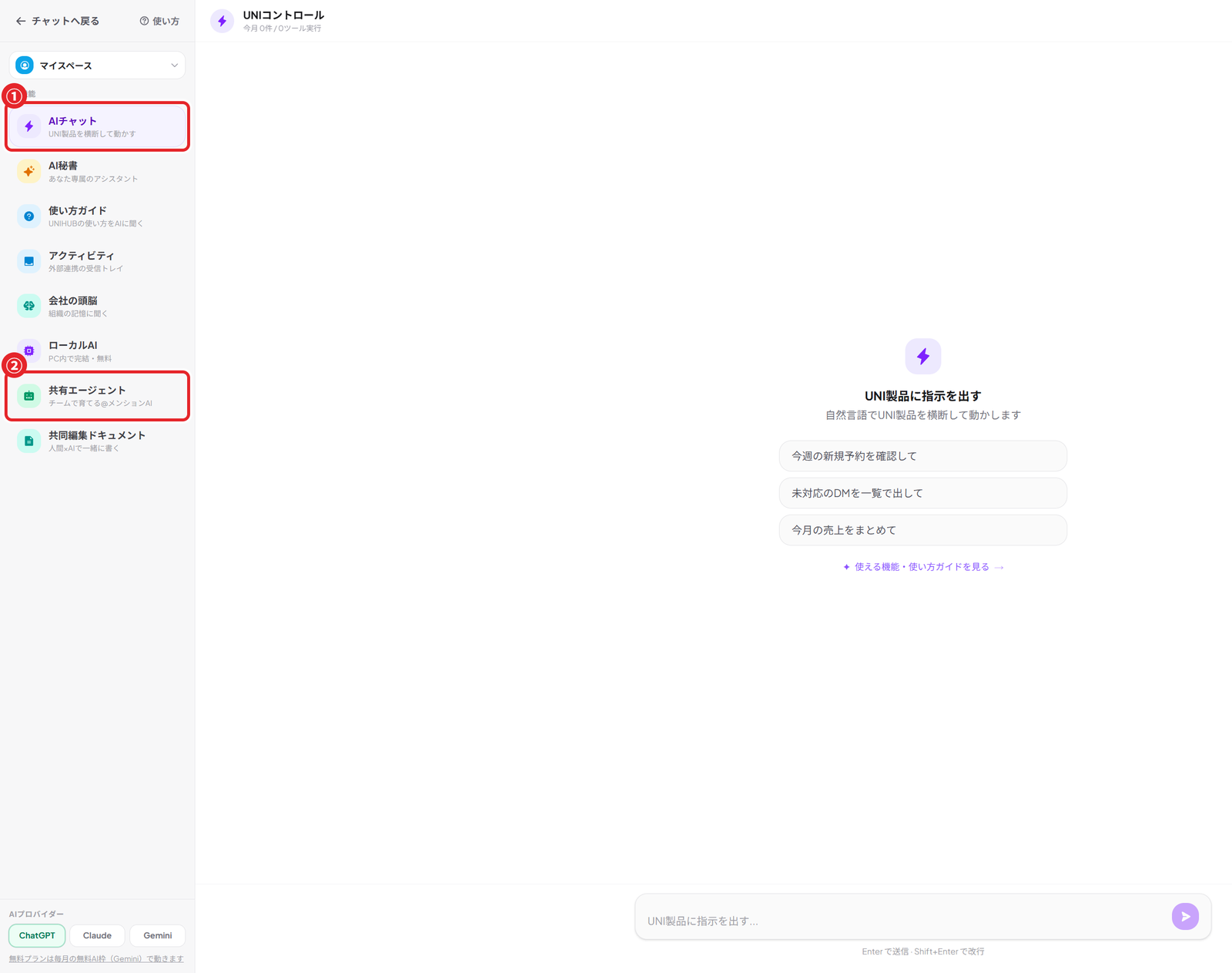
UNIHUB's AI features are used from the ⚡ UNI Control button at the top right of the screen. With a chat screen open, press the button at the top right and the "UNI Control panel" opens.
- Tap the ⚡ at the top right: press the "UNI Control" button on a chat screen
- Ask in plain language: just talk to it normally, such as "Summarize this week's unread messages"
- Check the result: the AI reads the group chat and replies
Try talking to it like this.
- Check this week's new bookings
- List the chats that haven't been handled
- Summarize this month's sales
- Summarize this group chat
- Extract the tasks
AI works without an API key
Even on the Free plan, you can use the AI features with monthly free AI credits (Gemini). Credits reset for each person on the 1st of every month.
On a paid plan, high-end AIs such as Claude and GPT are unlimited, and features that do not run on free credits, such as meeting summaries, the AI assistant, and chained agent runs, become available.
Choosing between the 3 AI modes
UNIHUB's AI runs in one of three places. The badge at the top of the AI panel shows which one is active.
Managed AI
No key needed, unlimited (paid plans)
On a paid plan such as Pro or Business, the full-featured AI works as is, with no API key to register. The cost is included in the plan (fair use).
Free AI credits
Run on monthly free credits (Free plan)
No API key needed. The model is Gemini (lightweight). The badge shows how much is left this month. New API key registration (BYOK) ended on 2026-10-12 (keys already registered keep working).
Local AI
Runs on your PC, completely free
Summarize, draft, rephrase, and proofread inside your PC (no data is sent outside). Requires a WebGPU-capable browser (Chrome, Edge, etc.; PC recommended). Open it from "Local AI" in the AI panel.
Note: heavy processing (tool runs via @ai, advanced reasoning over long text) is meant for Managed AI on paid plans. Local AI is best for light drafting and summaries.
Read
Get through history and unread messages fast
#01 Ask this group chat
[Recommended]
Just ask instead of reading the history
- When: "What was the budget we decided last week?" "What was that spec B mentioned?"
- How: Right panel AI → "Ask this group chat" → ask in plain language
- Example: ask "Who owns the Stripe integration?" and it answers, quoting the posts it based the answer on
#02 Summarize recent messages
Catch up in 30 seconds after stepping away
- When: one day away and 100 unread messages you don't want to read in full
- How: Right panel AI → "Summarize recent messages"
- Example: the last 50 messages → compressed into 3 to 5 bullet points
#03 Catch-up for new members
End the onboarding grind for people who join midway
- When: every new member needs the backstory explained
- How: Right panel AI → "Catch-up for new members"
- Example: automatically generates "What this place is for," "Main discussions," "Open items in progress," and "Posts to read first"
#04 Who should I ask?
Infers from history which member knows a topic
- When: "I want to ask someone who knows this, but who?"
- How: Right panel AI → "Who should I ask?" → enter the topic
- Example: enter "Supabase RLS" and it recommends the top 3 members with the most related posts, with evidence
#05 Detect event candidates
Turn date-and-time proposals buried in chat into calendar entries with one click
- When: "Is 3 pm tomorrow OK?" scrolls by and the meeting never gets scheduled
- How: Right panel AI → "Detect event candidates" → the "Add to Google Calendar" button on each card
- Example: pulls every "Monday 10 am next week" and "from 3 pm tomorrow" out of the history → one button adds it to Google Calendar
#06 Top 5 important unread
First thing in the morning, the AI picks what to look at first
- When: so many unread messages that the badge has become meaningless
- How: Right panel AI → "Top 5 important unread"
- Example: ranks mentions, decisions, highly reacted posts, and escalations by priority
Write
Polish text and get suggestions before you send
#07 Tone polish
[Recommended]
Rewrite your text as Polite / Concise / Friendly / Formal
- When: you agonize over the tone of customer messages every time
- How: Right panel AI → "Tone polish" → paste the text → choose a tone → run
- Example: "Handle this by tomorrow" → "I know you're busy, but I'd be grateful if you could take care of this by tomorrow"
#08 Suggest 3 replies
Stuck on a reply? Get 3 drafts to start from
- When: the first step when you don't know what to say back
- How: Right panel AI → "Suggest 3 replies"
- Example: reads the recent flow and generates 3 short reply drafts side by side
#09 Structure long text
Turn rambling text into headings and bullet points
- When: text pasted from ChatGPT is a mess and tidying it is a chore
- How: Right panel AI → "Structure long text" → paste the text → run
- Example: keeps all the information but reshapes it into ## headings and bullets. Reorders only; the meaning does not change
#10 Pre-send risk alert
Check for personal data, misunderstandings, and heat before sending
- When: you don't want to regret sending an emotional message
- How: Right panel AI → "Pre-send risk alert" → paste the text → run
- Example: flags things like "⚠️ The wording toward XX is strong" or "This contains personal data," plus a suggested fix
#11 Clean up voice transcript
[NEW]
Make raw Whisper text readable
- When: speech-to-text alone is full of fillers ("um," "uh") and unreadable
- How: Right panel AI → "Clean up voice transcript" → paste the transcript → run
- Example: "Um, uh, about tomorrow's thing" → "About tomorrow's matter"
#12 3 apology / thank-you drafts
[Recommended] [NEW]
Describe the situation and get 3 drafts for an apology / thanks / decline / request / follow-up
- When: boilerplate you're tired of writing from scratch every time
- How: Right panel AI → "3 apology / thank-you drafts" → enter the situation → choose an intent button
- Example: "The documents were 3 days late" + "Apology" → 3 drafts: polite, standard, casual. Like one? "Use in message box" inserts it straight into the composer
Decide
Record decisions and tasks
#13 Extract tasks
Pull action items out of a discussion
- When: tasks you thought were decided drift away and nobody does them
- How: Right panel AI → "Extract tasks"
- Example: the last 80 messages → organized automatically into "Task / Assignee / Due date" cards
#14 Extract decisions
Organize "when, who, and what was decided" in chronological order
- When: every week someone asks "Why did we decide that again?"
- How: Right panel AI → "Extract decisions"
- Example: extracts only what was agreed and finalized, not proposals or things under consideration, with the supporting posts
#15 Find stalled threads
Find topics stuck waiting for a reply and draft the follow-up too
- When: no reply in 3 days on something you asked for, and chasing feels awkward
- How: Right panel AI → "Find stalled threads"
- Example: up to 5 items with "no response for 3+ days," plus an automatically drafted gentle follow-up
#16 Extract team glossary
[NEW]
Find abbreviations and in-house terms in the history and build a glossary
- When: new hire asks "What does KPI stand for?" "What is OmniCast?"
- How: Right panel AI → "Extract team glossary" → "Save to glossary" per candidate / "Save all to glossary"
- Example: saved terms can be searched and edited in Settings → Team glossary. They become a shared asset every member of the organization can look up
Act
Bridge out of chat
#17 Call UNI products (agent)
[Recommended]
The AI handles requests like "This month's member count in UNICORE"
- When: logging in to another app and opening its dashboard is a hassle
- How: Right panel AI → "Call UNI products" → give instructions in plain language
- Example: "Give me this month's total contracts in UNIQ" → the AI calls the UNIQ MCP and summarizes the result
#18 Translate
Translate the group chat's recent messages with speaker names
- When: you want to share meeting notes with a multinational team
- How: Right panel AI → "Translate" → enter the target language
- Example: enter "English" and it outputs the English translation, one line per speaker
Automatic and special
Features that work without opening the AI panel
#19 Smart compose (autocomplete while you write)
While you're writing, the AI quietly suggests what comes next
- When: you get stuck on the next sentence while writing something long
- How: keep writing in the message box → pause for 7 seconds and a banner appears above → Tab to insert / X to dismiss
- Example: "About the meeting," → the AI suggests "could we do one hour from 3 pm tomorrow?"
#20 @ai mention (AI that takes part in the group chat)
Write @ai in a message and the AI replies
- When: you want to ask the AI inside the flow without opening the AI panel
- How: write "@ai …" in the message body and post it
- Example: "@ai tidy up this thread" → the AI responds as a reply in the thread
#21 @claude / @chatgpt / @gemini mentions (AI advisors)
Write @claude, @chatgpt, or @gemini and that AI reads the conversation and gives its opinion
- When: you want an AI's perspective in a discussion, want it to add information to a summary and comment, or want to pick a specific AI
- How: write "@claude …," "@chatgpt …," or "@gemini …" in the message body and post it (if you post it as a reply to a summary or similar, that content is taken into account too). If the AI you named is not available (on the Free plan, monthly free AI credits run on Gemini), another available AI answers instead. Note: if the conversation or question is too long, the token limit is reached and no reply comes back (shorter chunks are more reliable).
- Example: "@claude what do you think of this discussion?" / replying to a Zoom summary, "@gemini add XX to this and give me your take" / "@chatgpt give me the counterarguments too"
AI assistant
An automated assistant you delegate to from My Chat or LINE
#22 Requests to the AI assistant in My Chat (@ai / @秘書)
[Recommended] [NEW]
Ask with "@ai …" (or "@秘書 …") in My Chat and it runs in the background and reports back
- When: you want to say "List my open UNIDESK tasks" or "Make 'send the invoice by next week' a task" without leaving the screen
- How: in My Chat (your private chat) post "@ai …" or "@秘書 …" (the Japanese trigger; both work) → an immediate "Got it" → when finished, the result is posted (asynchronous, with a notification)
- Example: "@ai what UNIDESK tasks are due today?" → it looks them up in the background and reports. "@ai status" checks progress; "@ai cancel" cancels
#23 Approval card before running (writes require approval)
[NEW]
Writes such as creating tasks do not run until you press Approve
- When: you want to delegate to the AI but are wary of it changing data on its own
- How: make a request that involves a write and an "approval card" arrives in My Chat → review the contents and approve / reject
- Example: "Make 'send the invoice' a task" → a preview card with title and due date → approve, and exactly that content is registered in UNIDESK (expires automatically after 24 hours)
#24 Assistant memory (long-term memory)
[NEW]
The assistant learns from your exchanges automatically and applies it to later requests
- When: explaining the same context every time (owners, preferences, projects in progress) is tiresome
- How: accumulates automatically; you can also register manually with "@ai remember: …". Review, edit, pin, and delete in AI page → AI assistant → the "Assistant memory" card
- Example: "@ai remember: invoices close on the 25th every month" → taken into account in later requests automatically. "@ai memory" lists what it remembers
#25 Inbox (automatic sorting of notes and URLs)
[NEW]
Just toss ideas at @ai. The AI sorts them into ideas / knowledge / tasks automatically
- When: URLs and ideas you meant to look at later get buried in chat and disappear
- How: send a note or URL as is with "@ai …," without phrasing it as a request → the AI sorts it and 📦 saves it (tasks become an approval card)
- Example: "@ai this article might be useful later https://…" → 📦 saved as knowledge. "@ai ideas" lists them at any time
#26 Today's one move (morning briefing)
[NEW]
The assistant's automatic rounds come with one suggested action for today
- When: deciding what to start with in the morning takes a while
- How: Settings → Notifications → AI assistant, turn on autopilot (set the check times) → it arrives together with the unreplied and deadline checks
- Example: "👣 Today's one move: start with a reminder to XX, who has been waiting 3 days for a reply"
#27 LINE assistant link
[Recommended] [NEW]
Just message the AI assistant from the LINE app you already use
- When: you're out and want to ask the assistant from your phone without opening the app
- How: AI page → AI assistant → "LINE assistant link" → get a link code (UNI-XXXXXX) → send the code to the official UNIHUB LINE account and you're linked. From then on, just message it in LINE (no @mention needed)
- Example: in LINE, "What are my open UNIDESK tasks?" → the result arrives in both LINE and My Chat. Note: for safety, writes are always approved via the approval card inside the app
#28 Watchdog (inbound monitoring that alerts you only to emergencies)
[NEW]
The AI checks inbound items and unreplied messages every 15 minutes and alerts you with 🚨 only for emergencies
- When: you don't want to miss the one truly critical item buried among form responses and inquiries
- How: AI page → AI assistant → turn on "Watchdog" → the AI automatically checks 📥 inbound cards (form responses, inquiries, orders, etc.) and messages unreplied for more than 4 hours
- Example: only signs of complaints and urgent deals, payments, or trouble reach My Chat as a 🚨 alert with a reply draft (and LINE too, if linked). If nothing is urgent, nothing is sent
#29 Weekly community health report (for organization owners)
[NEW]
The AI reports on group activity and signs of churn every Monday at 9 AM
- When: by the time you notice the community has gone quiet, it is already too late
- How: delivered automatically to owners of organizations on Pro or above (no setup). The AI summarizes this week's and last week's post counts, active members, participation rate, and members who have stopped posting, and posts it to My Chat. If you don't want it, turn it off in the settings card (Weekly community health report) under AI page → AI assistant
- Example: "Posts are down 30% from last week. XX has been silent for 2 weeks. Time to reach out"
FAQ
Do I need an API key?
No. The Free plan runs on monthly free AI credits (Gemini) and paid plans run on Managed AI such as Claude and GPT, with no API key. New API key registration (BYOK) ended on 2026-10-12. Keys already registered can be updated or deleted in Settings → AI API keys and continue to work (once deleted, they cannot be re-registered).
Are my registered API keys safe?
They are stored encrypted with AES-GCM and can be decrypted only when AI runs on UNIHUB's servers. Supabase Row Level Security prevents other users from reading them.
The AI features aren't working
Please check: (1) on the Free plan, whether you still have free AI credits this month (the AI badge shows what's left; credits reset on the 1st of every month) / (2) whether it is a feature that does not run on free credits, such as meeting summaries, the AI assistant, or chained agent runs (available on paid plans) / (3) whether the group chat has at least 10 messages.
Can I turn the AI features off?
There is currently no setting to turn off AI for the whole organization at once. Chat AI runs only when you call it with @claude or similar, or press an AI button (owners of organizations on Pro or above receive a weekly AI report automatically).
What are the differences between providers?
ChatGPT (OpenAI) is well balanced and best for the agent (calling UNI products). Claude suits precise summaries and analysis of long text. Gemini suits "Ask" and "Catch-up," which read large amounts of group chat history (supports a context of over 2 million tokens). A recommended provider is shown for each feature.
How do I use voice transcription?
Record with the 🎤 microphone button in the message box → it is converted to text automatically. If the raw text is hard to read, "Clean up voice transcript" in the AI panel removes fillers and adds punctuation.
What is the @ai mention?
Write "@ai …" in the message body and the AI replies in that thread. You can call the AI naturally inside the flow of a discussion without opening the AI panel. You can also give each group chat's AI a personality (Coach / Note-taker / PM / Editor, etc.).
How do I use the AI assistant from LINE?
Go to AI page → AI assistant → "LINE assistant link," get a link code (UNI-XXXXXX, valid for 10 minutes), and send that code to the official UNIHUB LINE account to complete the link. From then on, just message it in LINE to make requests to the assistant (no @mention needed). Results arrive in both LINE and My Chat. For safety, write operations such as creating tasks always run only after you approve them on the approval card inside the UNIHUB app. You can unlink from the same screen.
What is Watchdog?
A feature where the AI assistant checks your inbound items every 15 minutes and alerts you with 🚨 only for emergencies. It covers 📥 inbound cards (integrations such as form responses, inquiries, and orders) and people you haven't replied to for 4 hours or more. Only items judged to be signs of a complaint or an urgent deal, payment, or problem reach My Chat with a reply draft (and LINE too, if linked). Non-urgent items are not notified. Turn it on or off in AI page → AI assistant → "Watchdog" (off by default).
What do the AI features cost?
UNIHUB itself is a flat rate per organization (unlimited members). AI is free within the monthly free AI credits (Gemini) on the Free plan, and on paid plans high-end AIs such as Claude and GPT are included in the plan price. AI meeting minutes have a monthly count per plan, and you can buy extra packs for anything beyond it.