The basics: organization vs. personal
How this is used in practiceCh. 1 Getting set up: organization, members, permissions
Screenshots show the Japanese screens; the English screens have the same layout.
UNIHUB has two kinds of things: things the whole organization owns and things only you own. Once you know which is which, questions like "Who can see this?" and "Will I get notifications I didn't ask for?" answer themselves. This page is for first-time users, with analogies and a glossary.
① Start with the two scopes
Knowing these two scopes answers almost every "Who can see this?" question.
Organization scope (shared by everyone)
Shared by the members of the organization. When one person sets it up, it affects every member involved.
Examples: group chats / webhooks / integrations / roles
Personal scope (yours only)
Belongs to you alone. Your settings are invisible to other people and do not affect them.
Examples: chats (DMs) / MCP keys / AI API keys / notification settings / passkeys
② Quick reference by feature
"Who can see this?" and "Who can set it up?" at a glance.
| Feature | Scope | Who sees it / what it affects | Who can set it up |
|---|---|---|---|
| Group chat (channel) | Organization | Only members who are in that group | Manager or higher |
| Chat (1-to-1 DM) | Personal | Only the two people in the conversation | You |
| Webhook (inbound endpoint from outside) | Organization | The URL is visible to every member of the same organization | Owner / Admin |
| Integrations (Stripe / GitHub / LINE, etc.) | Organization | Shared by the organization (posts land in the chosen group) | Owner / Admin |
| MCP (control from an external AI) | Personal | Keys you create are yours only | You |
| AI API keys (BYOK; new registrations ended 2026-10-12) | Personal | You only | You |
| Notification settings | Personal | You only | You |
| Passkeys / two-factor authentication | Personal | You only (stored on your device) | You |
| Members & roles (permissions) | Organization | Affects everyone in the organization | Owner / Admin |
③ Roles (permissions)
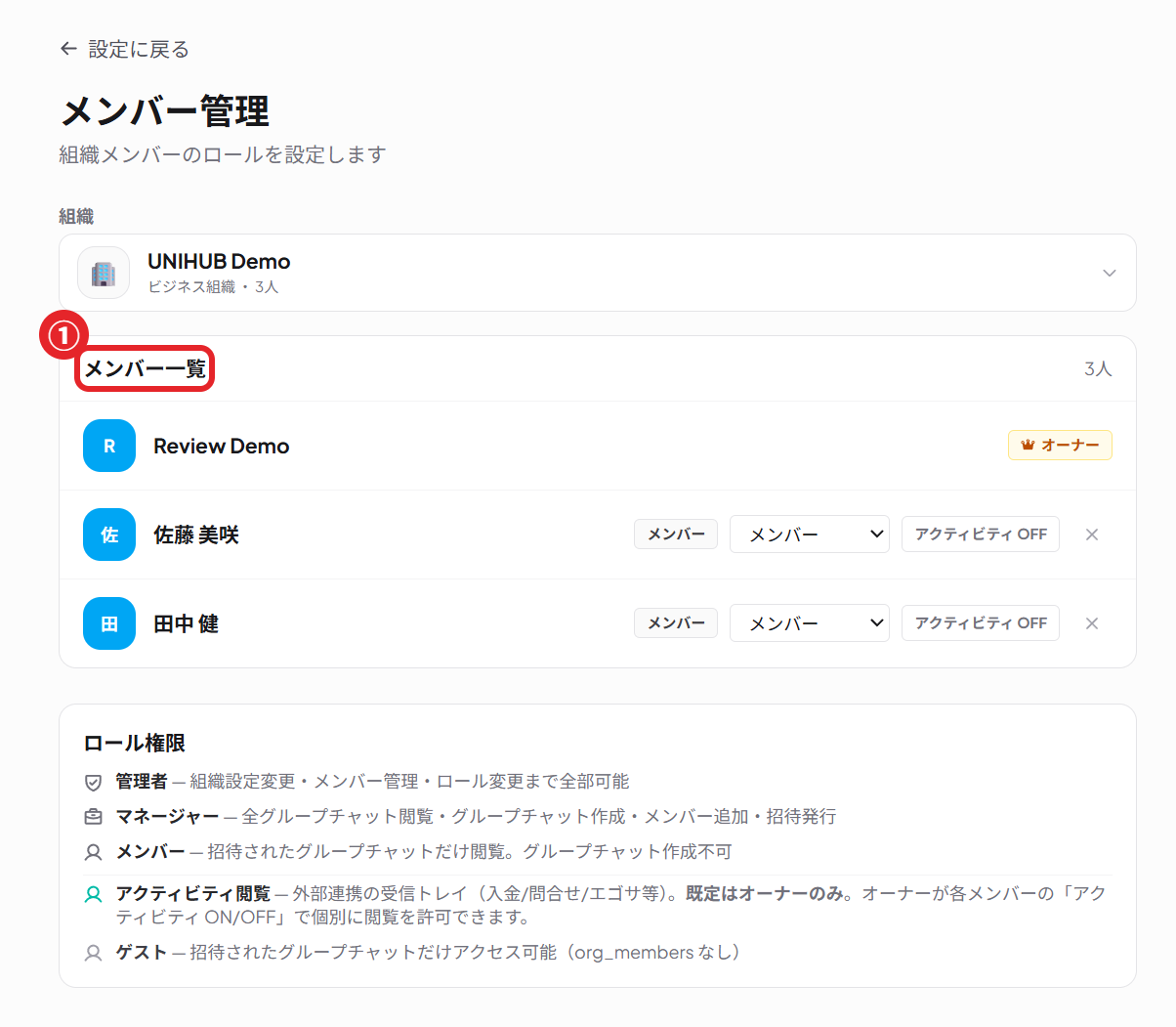
What you can do depends on your role. Higher in the list means broader permissions.
- Owner: everything in the organization, including billing, deletion, and transferring ownership.
- Admin: almost all day-to-day operation, such as managing members, integrations, and creating webhooks.
- Manager: creating and running group chats (channels).
- Member: chatting and reading in the groups they belong to. Cannot create new integrations.
- Guest: only the specific groups they were invited to. The narrowest permissions.
④ The main concepts, explained simply
Each comes with an analogy. When you hit an unfamiliar word, come back here.
Group chat (channel)
[Organization scope]
Think of it as a meeting room.
- Only people in the room can see the conversation inside it. People who are not in the room cannot see the contents.
- It belongs to the whole organization, so everyone in the group shares its contents.
- Only a Manager or higher can create a new room.
Chat (direct message)
[Personal scope]
Think of it as a letter between two people.
- Only the sender and the recipient are involved. Even an Admin cannot read someone else's chats.
- Unlike groups, chats are personal scope. Your private conversations are protected here.
Webhook (inbound endpoint from outside)
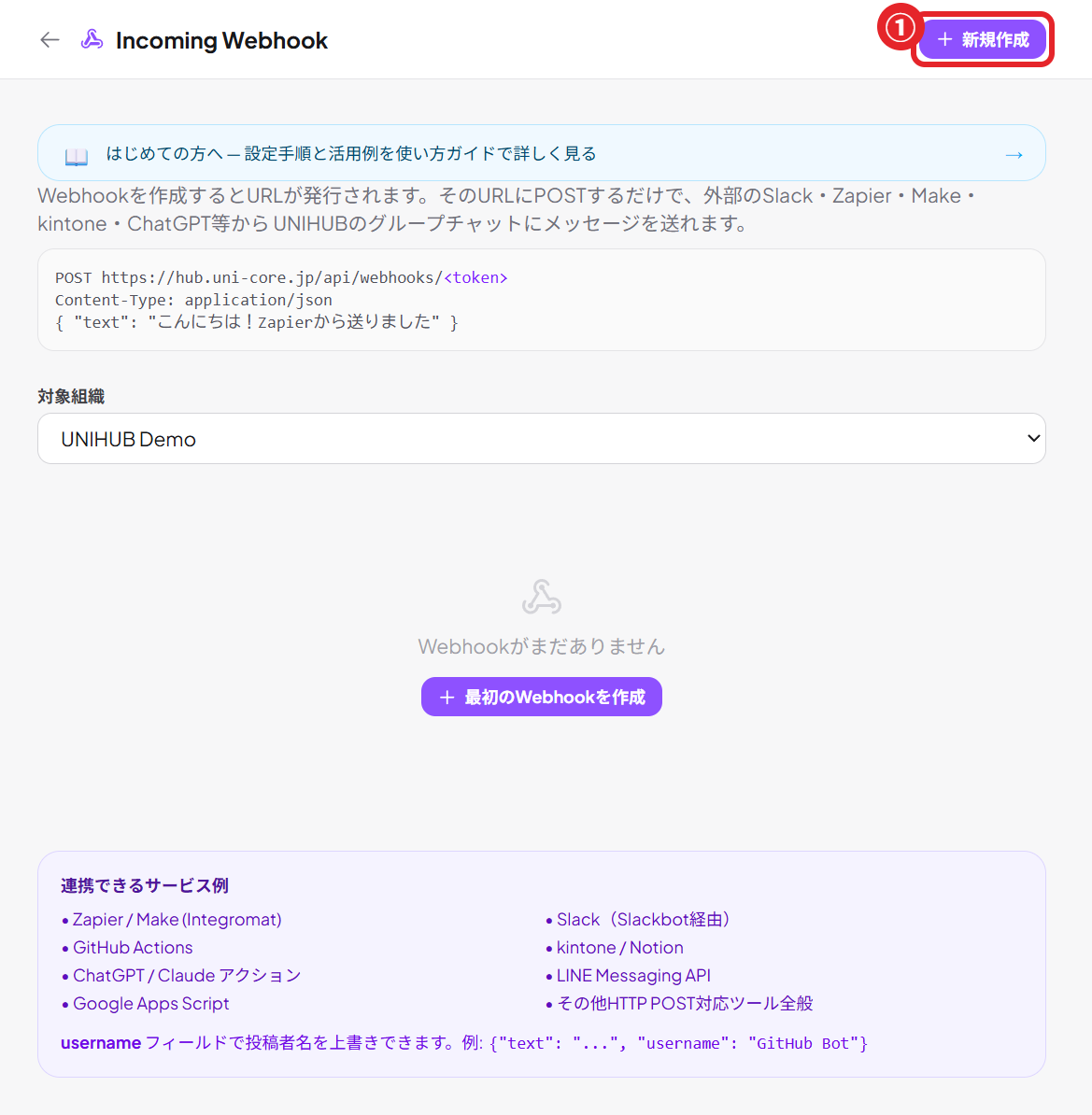
[Organization scope]
Think of it as a drop-in mail slot on the wall of one specific room.
- It is an entry point that lets outside services (form responses, online store orders, GitHub, and so on) "drop" messages into one chosen group in UNIHUB.
- ★ Very important: a webhook can only drop in (write). It can never read past chat. Someone who can put a letter in the slot cannot read the other letters inside.
- Webhooks belong to the organization, so once created, the URL appears in the settings screen of every member of the same organization (this is normal).
- Only an Owner or Admin can create one. Regular members cannot.
- The destination is fixed to the one group you choose when creating it. Webhooks cannot post into chats (personal letters).
- Caution: the URL itself is a key. Anyone who knows the URL can post to that group, so do not paste it in public or hand it out.
MCP (control from an external AI)
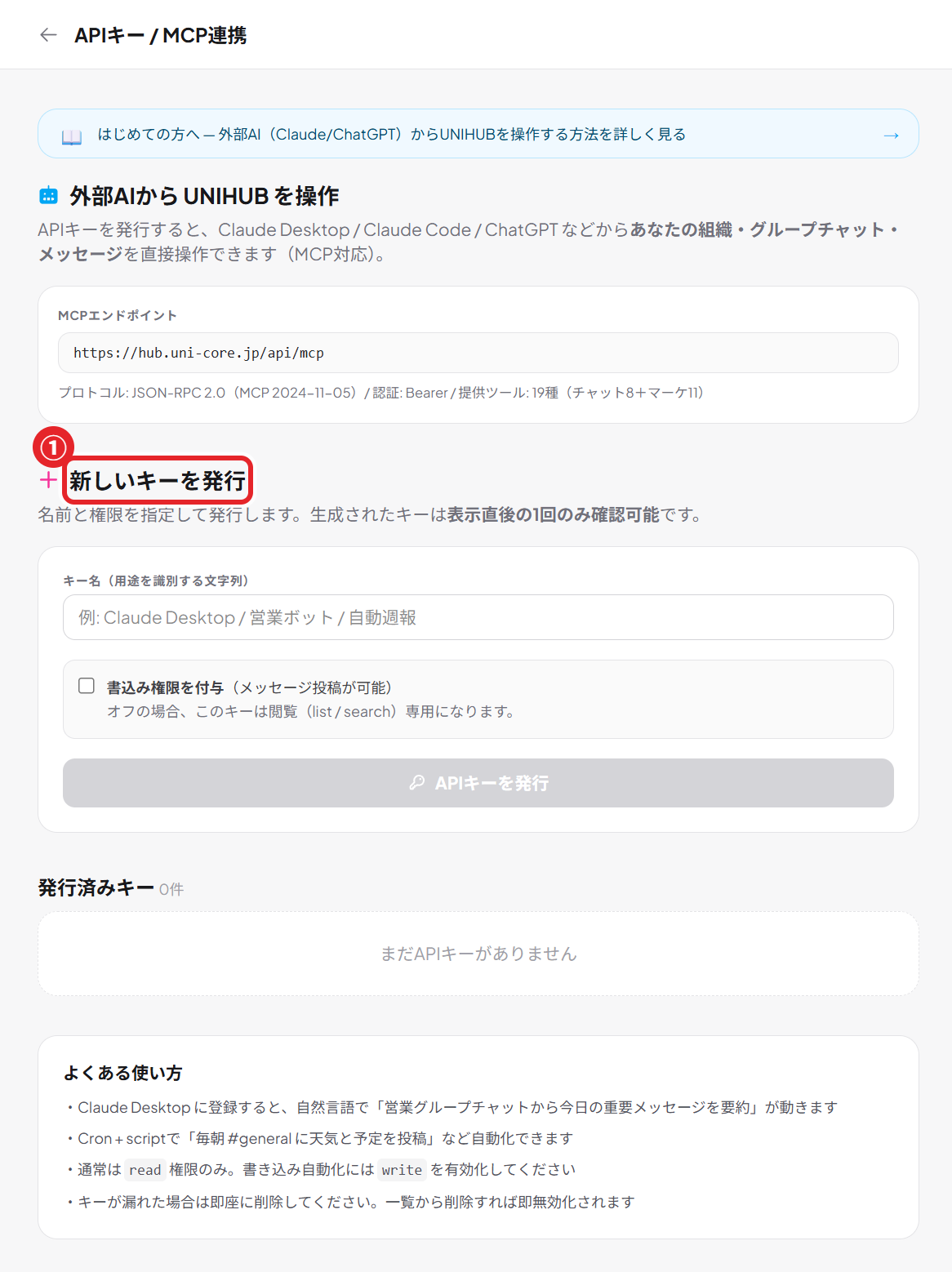
[Personal scope]
Think of it as a personal key you hand to an outside AI.
- It lets external AIs such as Claude or ChatGPT operate UNIHUB (post messages, search, and so on).
- The key (API key) is personal scope. Only you can see the keys you create, and they act only within your own permissions.
- A key is shown once, when you create it. Do not share or publish it. When you no longer need it, delete it and that key is disabled immediately.
Integrations (Stripe, GitHub, LINE, calendars, etc.)
[Organization scope]
Think of it as automatic call forwarding wired to the office landline.
- They deliver store sales, code updates, LINE inquiries (LINE is Japan's most widely used messaging app), and more into a group chat automatically.
- They belong to the organization. Only an Owner or Admin can set them up, and what arrives is shared by the members of the destination group.
Notifications
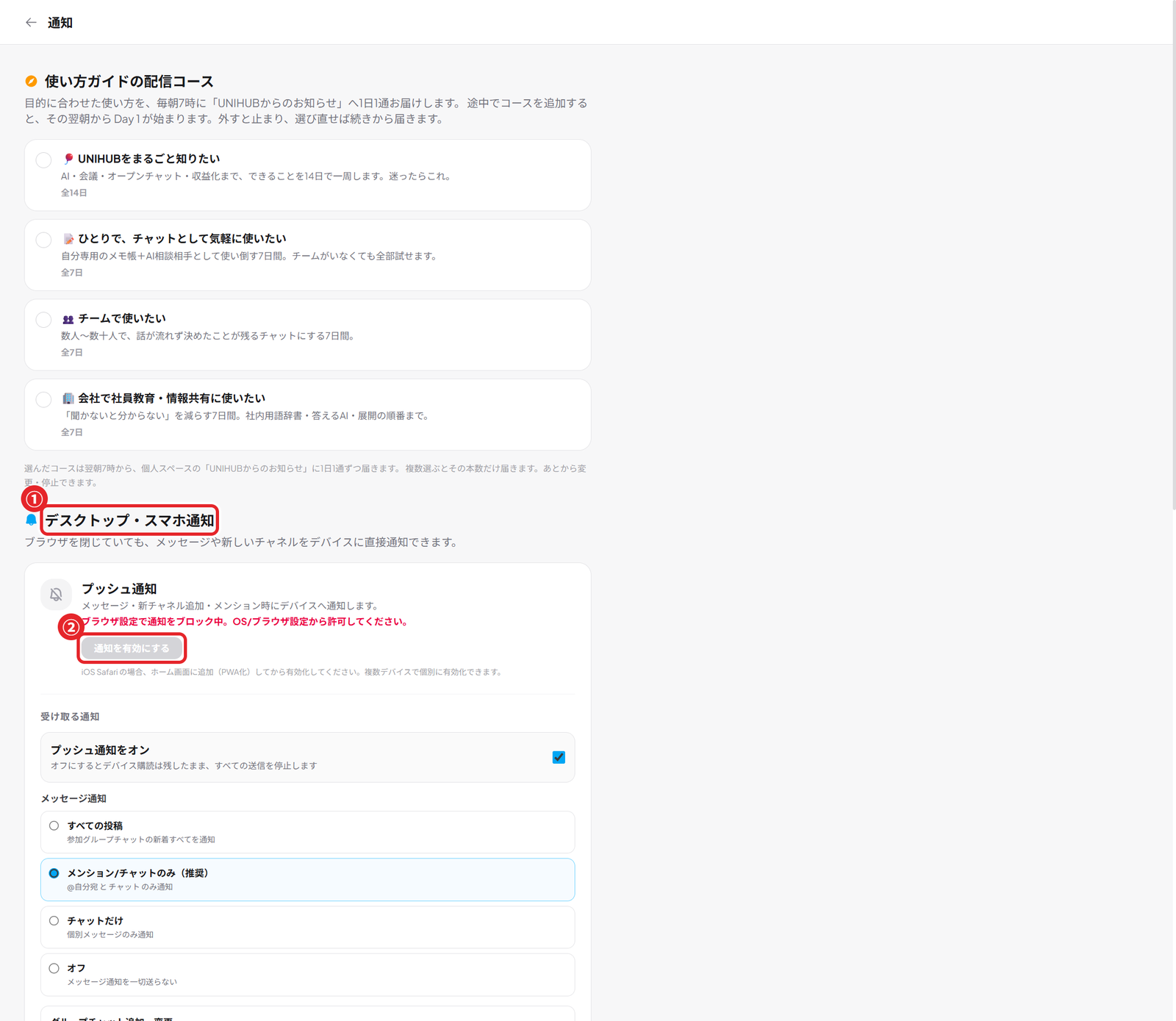
[Personal scope]
Think of it as the volume settings on your own phone.
- Whether you receive notifications, and how loudly each group notifies you, is personal scope. Your settings do not affect anyone else.
- For each group you can choose All / Mentions only / None.
Ask an AI (@claude / @chatgpt / @gemini)
[Personal scope]
Think of it as an advisor you can call into the conversation at any time.
- Write @claude, @chatgpt, or @gemini in a message and that AI reads the conversation up to that point and replies with opinions, a summary, or the key points.
- Examples: "@claude what do you think of this discussion?" or, replying to meeting notes, "@gemini add XX to this and give me your take."
- If the AI you named is not available (on the Free plan, the monthly free AI credits run on Gemini), another available AI answers instead (the end of the reply shows which AI answered).
- Usage is counted per person (monthly free AI credits on the Free plan, Managed AI on paid plans). No API key registration is needed (not available in chats/DMs). The reply is visible to everyone in that group.
- ⚠️ Note: if the conversation or question is very long, the amount the AI has to process (tokens) can hit the limit and no reply comes back. If that happens, shorten the question or narrow the scope and try again.
⑤ Common worries Q&A
Straight answers to "Is anything leaking?" and "Will things arrive without my say-so?"
If someone creates a webhook, can my past chat be read?
No. Webhooks are drop-in (write) only. They have no ability to read past messages, chats (DMs), or other groups. Your conversations do not leak outside.
Is it normal that other people can see the URL of a webhook I created?
Yes, that is normal. Webhooks belong to the organization (organization scope), so members of the same organization see them in the settings screen. Slack and similar tools work the same way. Unrelated people in a different organization cannot see them.
Could notifications land in my group without me knowing?
Only an Owner or Admin can create a new webhook. Regular members cannot. However, if an admin creates a webhook aimed at your group, outside posts to it may notify you. In Settings → the incoming webhook list, you can check which group each webhook targets and when it was last used.
If I create an MCP key, can other people use it?
No. MCP keys are personal scope and belong only to the person who created them. Nobody else can see them. If one ever leaks, delete it and it is disabled immediately.
I asked an AI (@claude / @chatgpt / @gemini) but got no reply
If the conversation or question is too long, the AI can hit its limit (tokens) and no reply is generated. Shorten the question, narrow the messages it looks at, or wait a bit and try again. On the Free plan, also check that you still have free AI credits this month (credits reset on the 1st of every month).
There is a group with a 🔒 in the sidebar. What is it?
It is a locked group. When you meet the conditions set by an admin (reading the rules, reacting to a specific post, completing a task, having a join request approved, or finishing a UNICORE course), you are added automatically. Click the 🔒 to see what to do; when you meet the conditions you get a notification and the group opens.
⑥ Glossary
When in doubt, look here. Common terms, each in one plain sentence.
| Term | Also known as | Scope | Meaning |
|---|---|---|---|
| Organization (workspace) | Organization | The container for your company or team. Group chats, members, and integration settings all live inside it. | |
| Member | A person who belongs to the organization. Adding people never changes the price (unlimited members). | ||
| Role (permissions) | Organization | What each person is allowed to do. From broadest to narrowest: Owner > Admin > Manager > Member > Guest. | |
| Owner | The person ultimately responsible for the organization. Can do everything, including billing, deletion, and handing over ownership. | ||
| Admin | Can run almost everything: managing members, integrations, creating webhooks, and so on. | ||
| Group chat (channel) | channel | Organization | A meeting room per topic. Only people in it can see the contents. |
| DM | direct message, chat | Personal | A private 1-to-1 conversation. Only the two participants can see it. |
| Thread | A small side conversation split off from a message. You can give it a title or make it a secret thread for selected people only. Threads you follow appear in the sidebar. | ||
| Auto-webinar | A lead-generation feature that streams a recorded video as a scheduled "live" session (Starter and above). Registration page, reminder emails, time-limited offers, and stats are all automatic. | ||
| Mention | @ | Writing "@name" to call someone out and send them a notification. You can also call an AI with @ai. | |
| Webhook | Organization | An inbound endpoint that drops messages from outside services into a chosen group. Write-only; it cannot read past chat. | |
| Incoming / Outgoing | Incoming = coming in from outside. Outgoing = going out from inside. | ||
| Token | webhook token | The long string inside a webhook URL. It is itself a key, so keep it secret. | |
| MCP | Personal | A shared standard that lets external AIs (Claude, ChatGPT, etc.) operate UNIHUB. Runs on your personal key. | |
| API key | Personal | A key that lets a program or AI act on your behalf. Shown only once, when created. | |
| BYOK | Personal | Short for "Bring Your Own Key": using your own OpenAI / Claude / Gemini key. New registrations ended 2026-10-12; only keys already registered can be used. | |
| Card | A tidy, sticky-note-style view of notifications such as form responses and orders. | ||
| Activity | The screen that gathers form responses, orders, AI results, and more in one place (📥 in the left navigation). | ||
| Passkey | Personal | Signing in with a fingerprint or face instead of a password. Biometric data stays on your device. | |
| Two-factor authentication (2FA) | Personal | Protects sign-in with a second check (such as a one-time code) in addition to your password. | |
| Push notification | An alert that reaches your phone or PC even when the app is not open. | ||
| PWA | Adding the site to your phone's home screen so it works like an app. Notifications arrive more reliably. | ||
| @claude / @chatgpt / @gemini | Personal | Mentions for asking an AI in chat. The AI reads the flow of the conversation and replies with opinions or a summary. Runs on monthly free AI credits on the Free plan and on Managed AI on paid plans (not in DMs). Long conversations may hit the token limit and get no reply. | |
| Token | token (AI) | The unit for how much text an AI reads or writes. There is a per-request limit; if the conversation or answer is too long, it can be exceeded and the reply stops. | |
| Unlock rules (🔒 locked groups) | Organization | A group you join automatically once you meet conditions such as "read the rules" or "react to a post." Shown with a 🔒 in the sidebar; click it to see the conditions. |