How to use chat
How this is used in practice3-6 Tasks and reminders4-9 Drafts for unanswered chats
Screenshots show the Japanese screens; the English screens have the same layout.
For people using UNIHUB for the first time. This page covers all the basic operations: group chats, chats, mentions, scheduled sending, and notifications.
First things first
Sign up with your Google account
From the top page, choose "Get started free" → sign in with Google. It takes 30 seconds.
Create an organization (workspace)
Pick a team name and a color and create it. You can change both later, so just enter something and move on.
Invite members
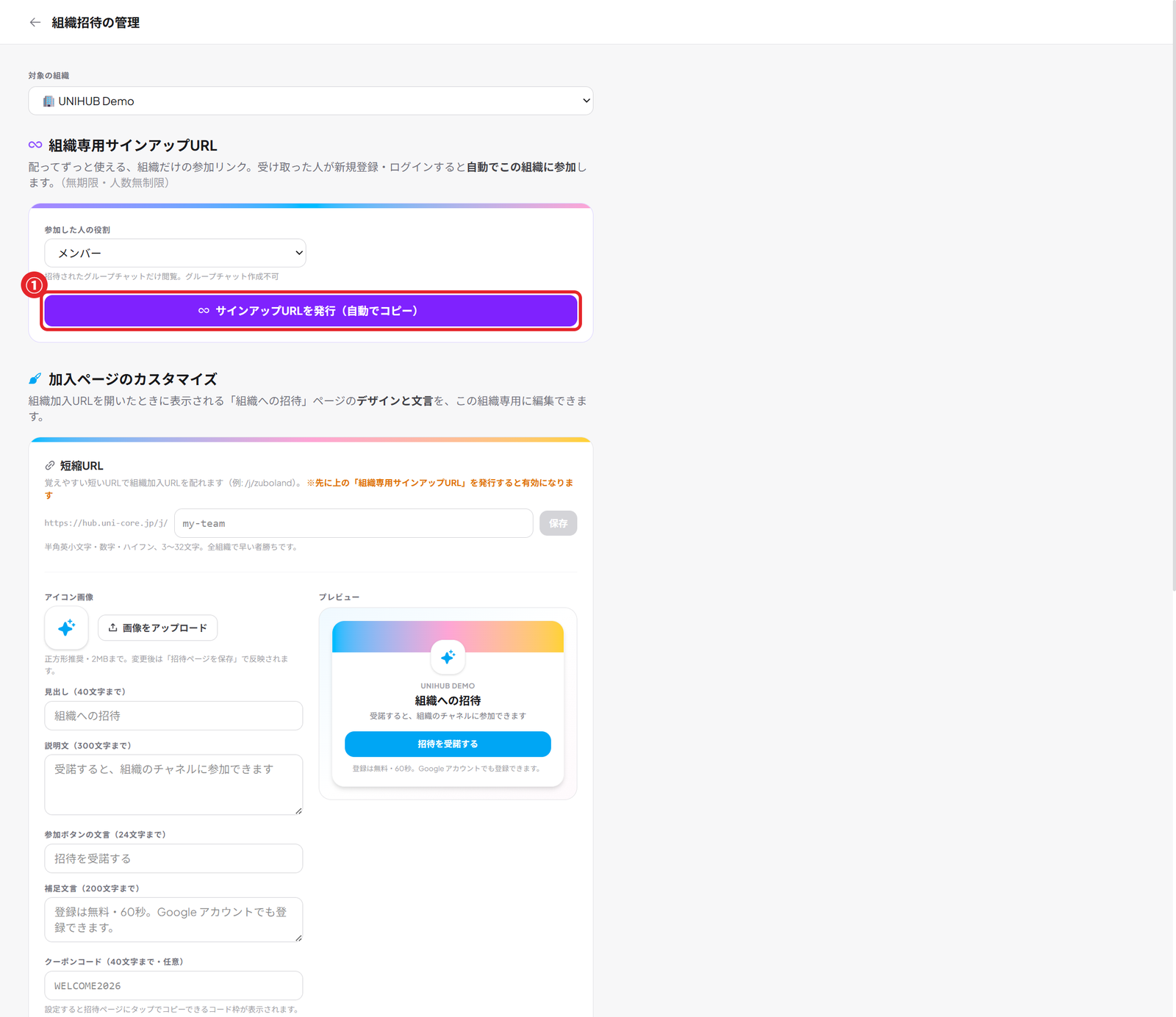
Settings → Invite members → create an invite URL and send it by LINE (Japan's most widely used messaging app) or email. Inviting more people never changes the price.
Create a group chat and say something
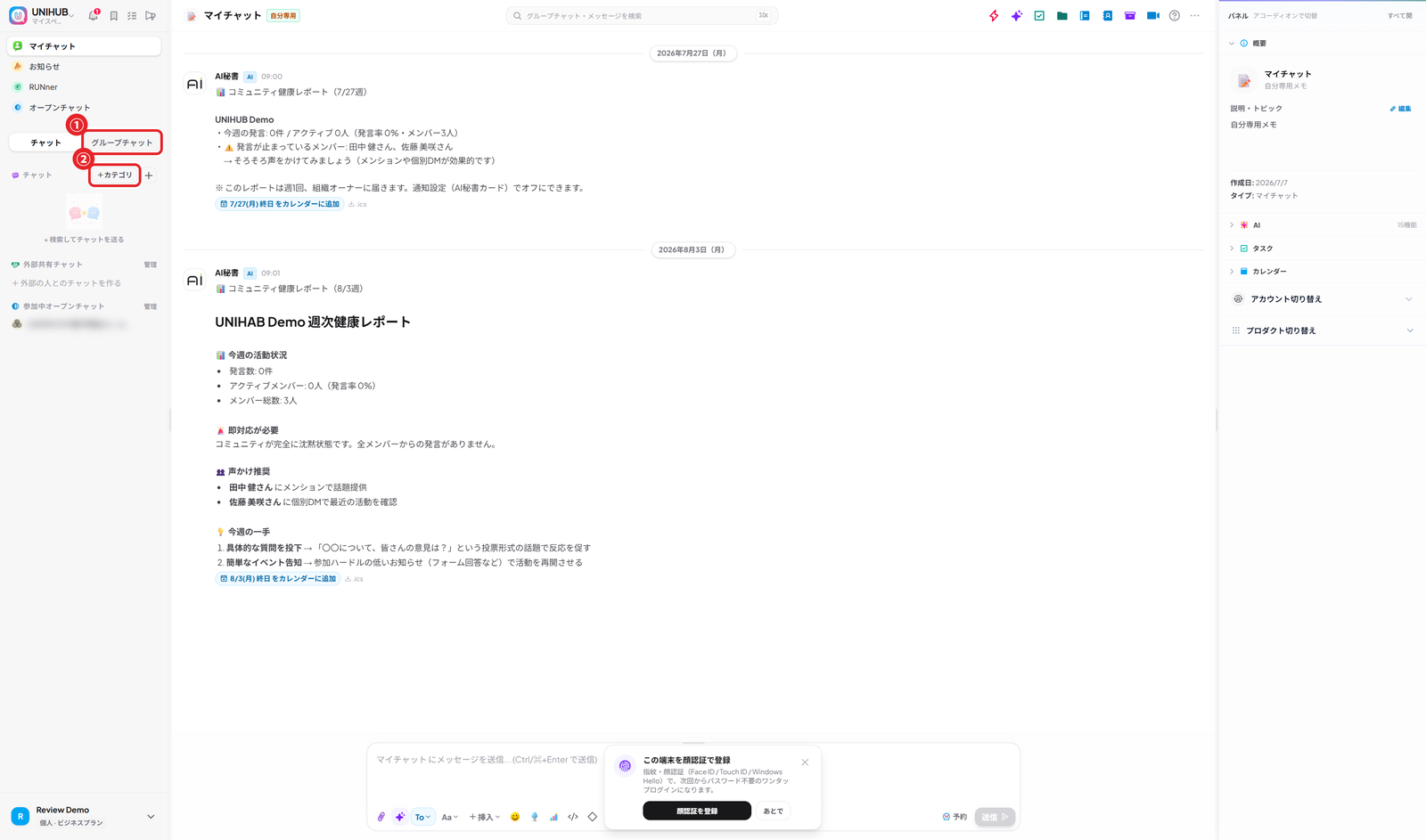
Create one from "+ Group chat" in the left sidebar. Start by making one such as "Announcements" and posting in it.
Group chats
What is a group chat?
A room for one topic. Create one per purpose, such as "Announcements," "Development," or "Sales." It is the equivalent of a Slack channel or a Chatwork group chat (UNIHUB calls them "group chats").
Set a group chat's color
When you create a group chat you can choose a color (Amber / Sky / Pink / Teal). Color-coding by purpose lets you tell them apart at a glance.
Add members to a group chat
Top right of the group chat → Members → Invite. You can also run "external guests" who are added to specific group chats only.
Organize group chats with categories
Use "+ Category" at the top of the left sidebar to group them. Bundle them into "Work," "Casual," and so on for a tidy sidebar.
Send messages
Basic posting
Type in the box at the bottom and press Enter to send. Shift+Enter inserts a line break.
Replies and quotes
Hover over a message and click "Reply" to post a reply linked to that message. When you want to split off a topic and discuss it at length, use a thread (see below).
Edit or delete a message
Hover over your own post to show the "…" menu. You can edit at any time after posting. Deleted messages show as "Deleted."
Send files
Use the 📎 button to the left of the message box, or drag and drop a file. Images get an automatic preview (limit: 100 MB per file).
Threads (split off a topic)
Create a thread
Hover over a message and click the "Thread" icon. A thread opens on the right so you can continue the topic without cluttering the timeline. Giving it a title makes it easier to find later.
Follow threads from the sidebar
Threads you follow appear under the group chat in the left sidebar with a 🧵. A blue dot appears when there is something new, and one click opens the thread from anywhere.
Following and notifications
Posting in a thread automatically makes you a follower, and you are notified of new posts. To follow without posting, use the "Follow" button; to stop notifications, click "✓ Following" to leave. Being @mentioned also makes you a follower automatically.
Secret threads
Choose "Secret" when creating a thread to make a private room that only the members you pick can see. It leaves no trace in the group chat, and non-members cannot even tell it exists. Only the creator can invite people.
Call an AI in a thread / delete a thread
Call @ai or @claude inside a thread and the AI's reply arrives in the thread too. The creator can delete a thread they no longer need from the trash icon in the header (the original message stays).
Chats (1-to-1)
Send a chat
Click a member's name in the "Chats" section of the left sidebar to start a private 1-to-1 conversation.
My Chat (notes only you can see)
Click your own name in the left sidebar to open "My Chat." Use it as a place for notes and bookmarks that only you can see.
Mentions (calling someone)
@name to notify a specific person
Write something like "@Tanaka could you take this?" and Tanaka gets a notification. Type "@" while composing and suggestions appear.
@TO_ALL to notify everyone in the group chat
Write "@TO_ALL important announcement" and every member of that group chat is notified. Use it for urgent contact and all-hands announcements.
@ai to call the AI
Write "@ai summarize this thread" and the AI replies in the thread. You can ask the AI inside the flow of the conversation without opening the AI panel.
Reactions
React with an emoji
Hover over a message, click the face icon (😊), and pick an emoji. A 👍 instead of typing "Got it!" means no reply needed.
See who reacted
Emoji and counts appear under the message. Click a reaction to see who pressed it.
Tasks
Create a task from a message
"…" menu on the message → "Add to tasks." Turn an action decided in conversation into a task on the spot.
Check tasks
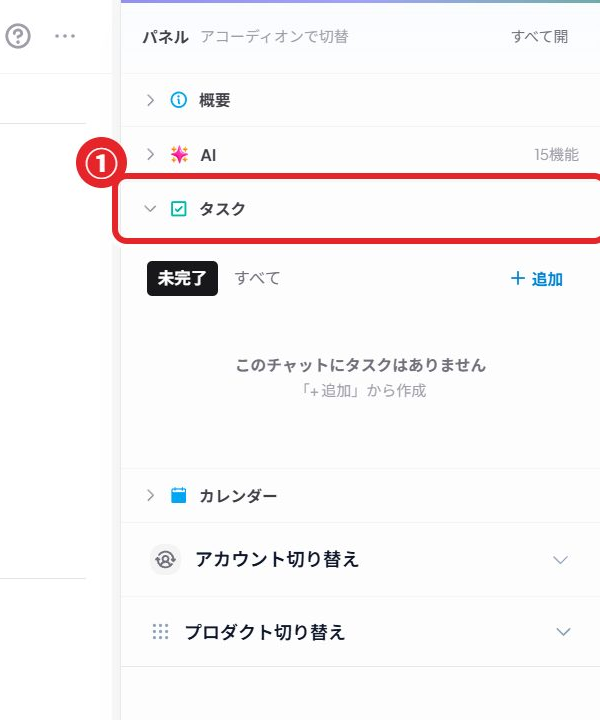
Right panel → "Tasks" tab. You can see the task list for that group chat and tick tasks to mark them done.
Edit later
Hover over a task row and use the ✏️ that appears to change the title, notes, due date, assignee, status (Not started / In progress / Done), and reminder. There is no need to recreate it. Only when you change the title, due date, or assignee does a single line, "✏️ Task updated," get posted to that chat.
Extract tasks automatically with AI
Right panel AI → "Extract tasks" detects action items from the flow of the conversation automatically. (No API key needed.)
Bookmarks
Bookmark a message
"…" on the message → "Bookmark." Save information you want to reread later or important decisions.
View your bookmarks
Open your bookmark list from the bookmark icon at the top left, next to the notification bell.
Search
Search messages
Use the search icon (🔍) at the top of the left sidebar to search messages across all group chats.
Ask a group chat with AI
Ask in plain language, such as "What was decided last week?" or "Who owns that item?", and the AI reads past posts and answers. Right panel AI → "Ask this group chat."
Scheduled sending

Schedule a message for a date and time
From the menu next to the send button in the message box, choose "Schedule send" and pick the date and time. For example, write a message late at night and have it delivered the next morning.
Check or cancel a scheduled message
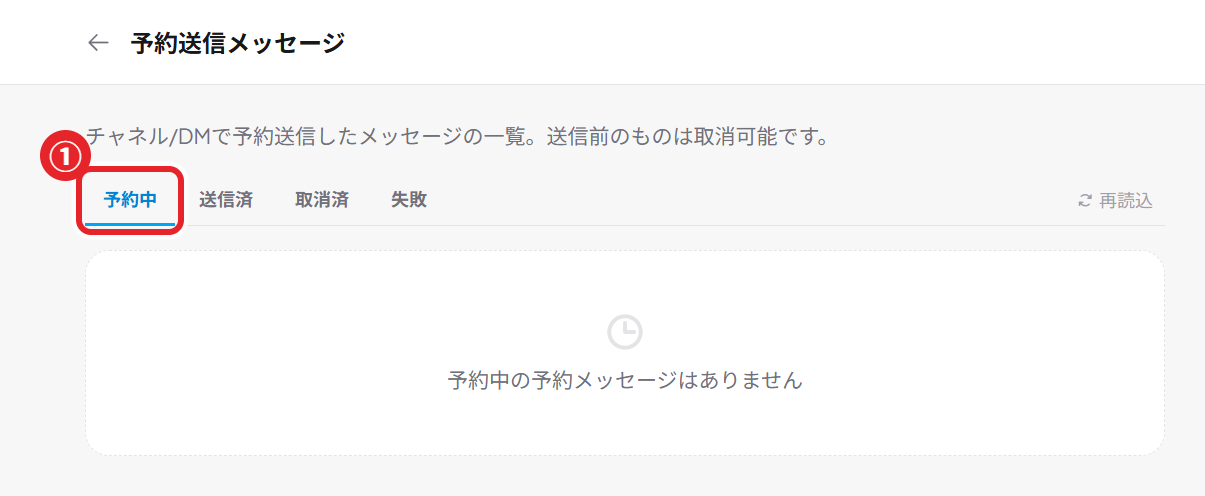
Settings → Scheduled messages lists scheduled, sent, and canceled messages. You can cancel at any time before it is sent.
Activity (web traffic in one place)
What is Activity?
A screen that collects form responses, orders (Stripe), webhook notifications, AI results, and more as "cards," so you can view them across the organization from "📥 Activity" in the left navigation. Web leads that would otherwise get buried in chat no longer slip through.
Sort cards
Each card can be assigned to a person or forwarded to another group chat, so you decide who handles it on the spot.
Turn web input into cards
UNIFORM responses and Stripe orders become cards automatically. Generic webhooks can also be collected as cards if they POST in the specified format (Settings → Integrations).
Notifications
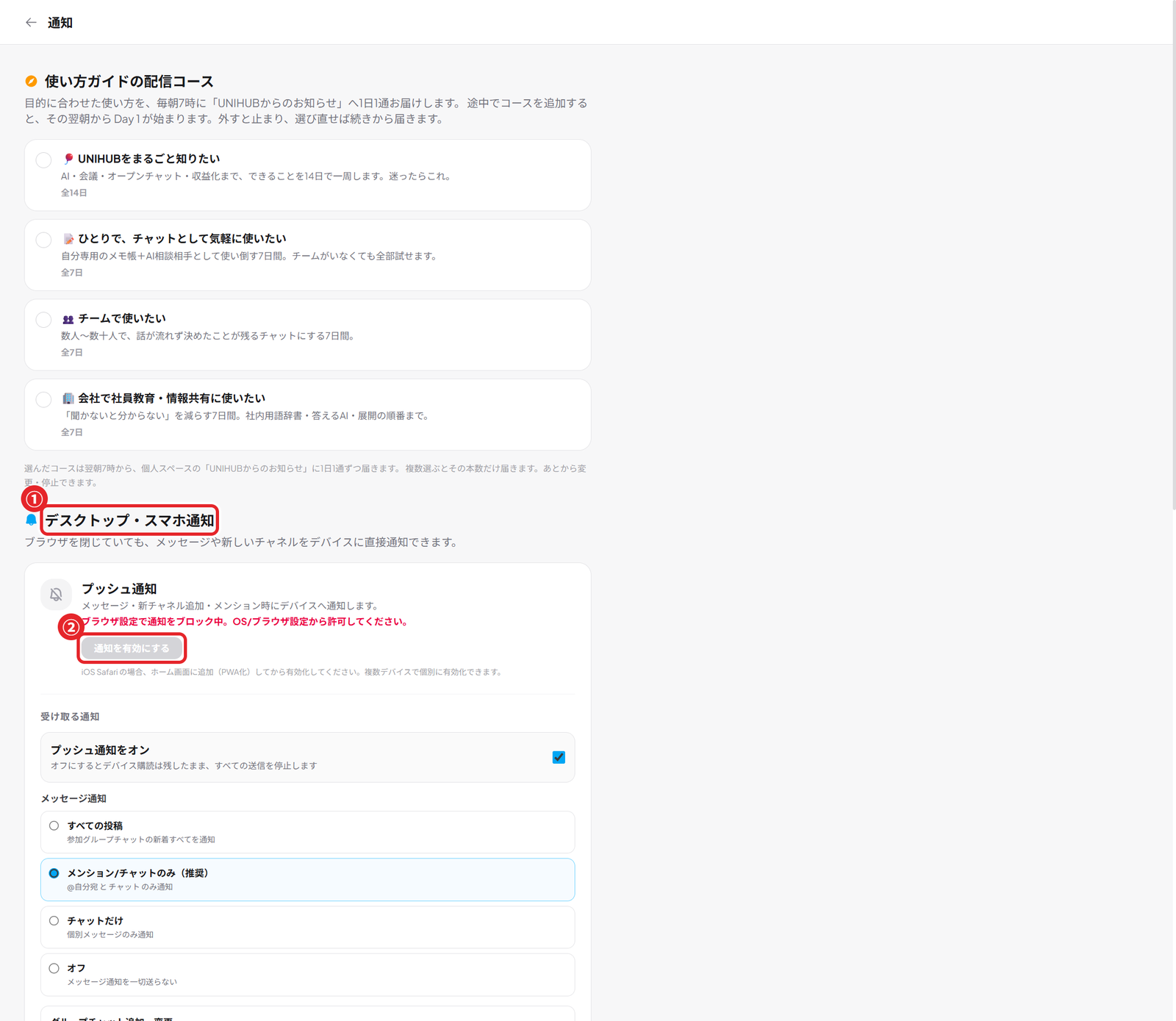
Types of notifications
There are three kinds: in-app bell notifications, browser push notifications, and email notifications. They arrive when you are mentioned, when you receive a chat, and on TO_ALL.
Notification settings
From Settings → Notifications you can set the notification level per group chat (All / Mentions only / None).
Receive push notifications on your phone
Open UNIHUB in Safari on iPhone or Chrome on Android, then use "Add to Home Screen" to install it as a PWA. After that, go to Settings → Notifications → "Subscribe to notifications" and push notifications will reach your phone.
Related guides
- Try the AI features too: 29 AI features including summaries, task extraction, and reply suggestions
- Connect external tools: GitHub, LINE, calendar, and webhook integrations