UNI integrations guide
How this is used in practice5-1 Connecting UNI products
Screenshots show the Japanese screens; the English screens have the same layout.
Connect UNIHUB to UNI products such as UNIDESK, UNICORE, and UNIQ. Setup steps for running them from AI, syncing tasks, and inviting course members automatically.
UNI integrations (AI agent)
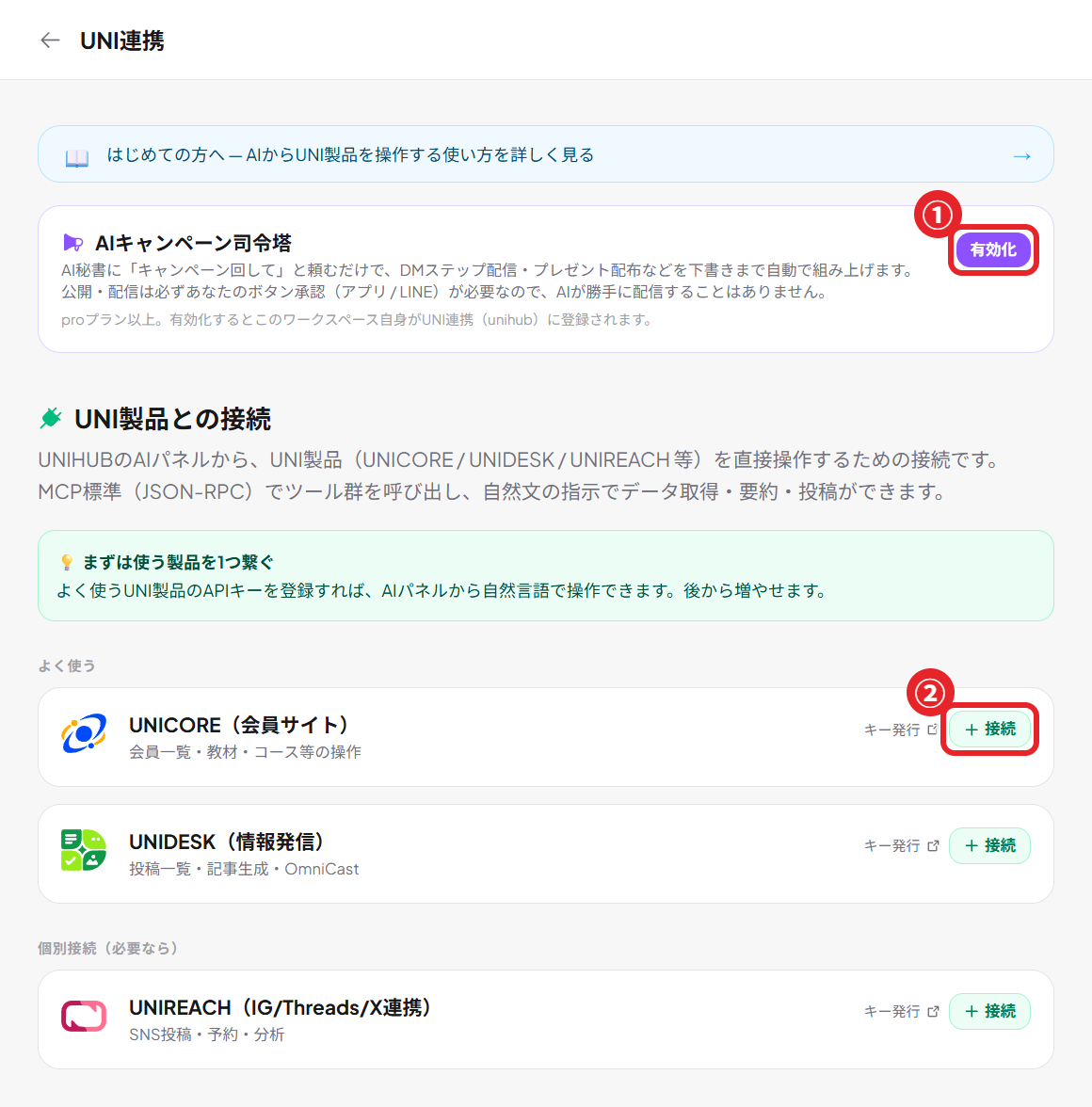
Let UNIHUB's AI fetch, aggregate, and act on data in UNI products from plain-language instructions
Setup
- Go to Settings → Integrations & automation → UNI integrations (AI agent)
- Click "Connect" on the product you want and paste that product's API key (see "Where to get API keys" below)
- Click "Test connection" to confirm it works, then save
- In the AI panel, choose "Call UNI products" and give instructions in plain language
Examples
- "Give me this month's total contracts in UNIQ" → the AI calls UNIQ and totals them
- "How many new members in UNICORE?" → an answer right away, without opening another app
- "Summarize the history for Ms. X in UNICARTE"
- Ask the AI for a report that spans several products
Tip: Tools are called using the MCP standard (JSON-RPC). API keys are stored encrypted with AES-GCM, and more products can be added later.
UNI task sync (UNIDESK)
Tasks created in UNIHUB are copied automatically to your connected UNIDESK and their status is kept in sync
Setup
- Go to Settings → Integrations & automation → UNI task sync (paid plans, Starter and above only)
- Click "Connect" on UNIDESK and paste an API key with write permission
- Create a task in UNIHUB ("… → Add to tasks" in chat, AI "Extract tasks", or the Tasks panel)
- The task is created in UNIDESK at the same time. When you change its status, the UNIDESK status updates too
Status mapping
| UNIHUB | UNIDESK |
|---|---|
open | todo |
in_progress | doing |
done / archived | done |
Examples
- Collect tasks decided in chat straight into UNIDESK's project management
- Mark it "Done" in UNIHUB and it becomes done in UNIDESK too
- Conversation → AI extracts tasks → registered in UNIDESK automatically, all in one flow
Tip: Sync currently runs in one direction, UNIHUB → UNIDESK (edits made in UNIDESK are not sent back to UNIHUB). If the connected product is down, task operations in UNIHUB still succeed as normal.
Automatically invite UNICORE course members
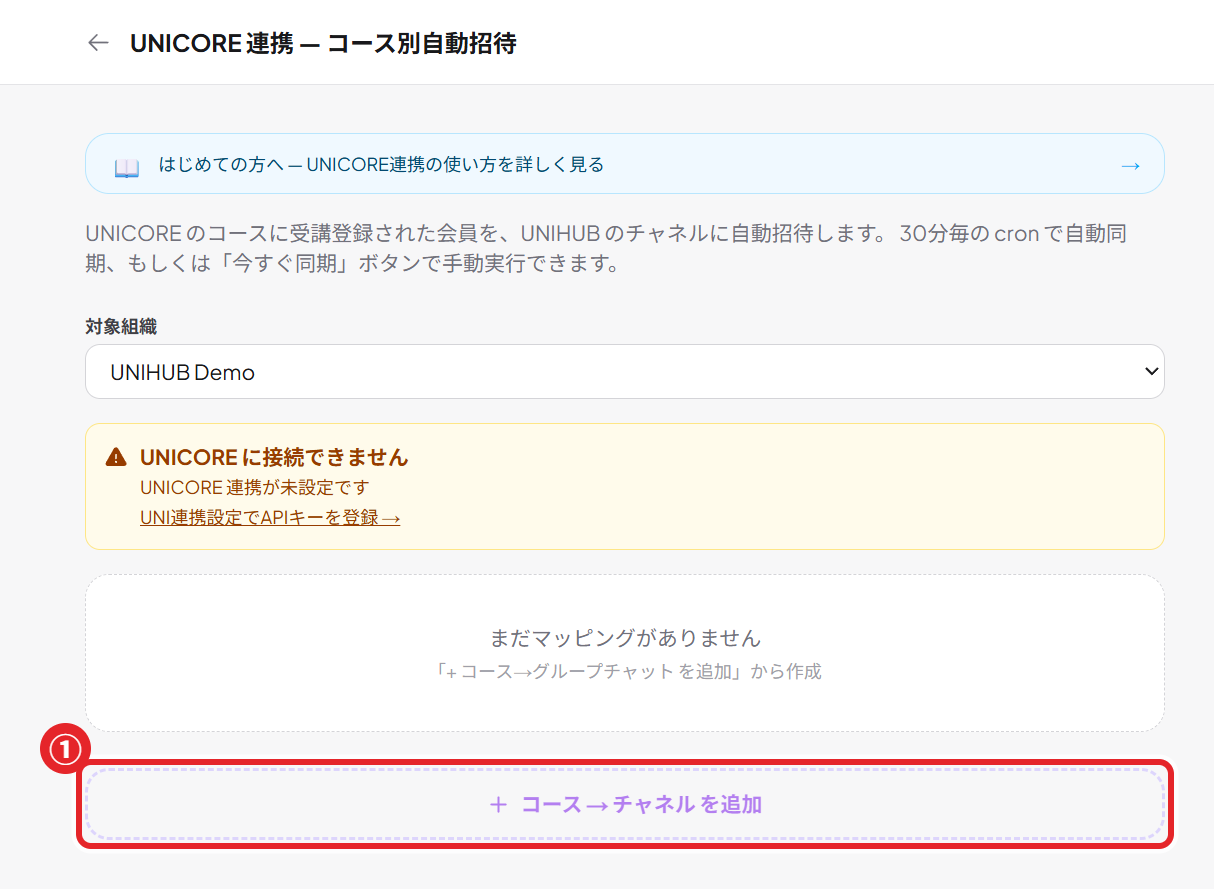
Automatically invite people enrolled in a UNICORE (membership site) course to the matching UNIHUB group chat
Setup
- Go to Settings → Integrations & automation → UNI integrations and connect UNICORE
- Open "Course settings" in the UNICORE integration
- Map each UNICORE course to the UNIHUB group chat to invite members to
- As new people enroll, they are invited to the matching group chat automatically
Examples
- Gather course students automatically in a group chat dedicated to that course
- Onboard new students with zero manual work
- Run a community with a separate channel for each course
Tip: Sync works per course-to-channel mapping. You can also run "Sync now" manually.
Set up the UNICORE integration →
AI campaign command center
Just tell your AI assistant "run a campaign" and it drafts a complete marketing campaign for you
Setup
- Go to Settings → Integrations & automation → UNI integrations and enable "AI campaign command center" (Pro plan or higher)
- Send "Run a campaign: announce X" to the AI assistant in My Chat (or on LINE, Japan's most widely used messaging app, if you have linked it)
- The AI checks the current state and creates DM step messages, gift giveaways, and more, all as drafts
- You receive an approval card (a button in the app or on LINE) only for publishing and sending. Nothing runs until you approve
Examples
- "Run a launch campaign for the new product" → a full set of drafts for each channel plus a publish approval button arrives
- Give the go-ahead to publish a campaign from LINE alone while you're out
- Your morning briefing automatically includes redemptions for live gifts and new enrollments in step messages
Tip: Safe by design: the AI can only go as far as "creating drafts" on its own. Publishing, sending, and confirming schedules always require your button approval (nothing is sent until you approve). 💡 To improve the writing: the more materials (past posts, tone and style) you register with the agent, the more the drafts sound like you.
Enable the AI campaign command center →
Where to get API keys for each UNI product
Each integration needs an API key issued by the UNI product you want to connect. Open each product's key page from the links below.
(In most products: left nav → API keys → Create. For integrations that write data, such as creating tasks, give the key write permission.)
| Product | Key page | Notes |
|---|---|---|
| UNIDESK (tasks / content publishing) | desk.uni-core.jp/api-keys | Left nav "API keys" → "Create API key". Task sync needs write permission |
| UNICORE (membership site) | unilinks.uni-core.jp/admin/api-keys | API keys in the admin panel |
| UNIQ (sales management) | uniq.uni-core.jp/api-keys | Deal and contract totals |
| UNICARTE (client management) | carte.uni-core.jp/api-keys | Client records and history |
| UNIREACH (social media) | reach.uni-core.jp/api-keys | Posts, scheduling, analytics |
| UNISIGN (e-signatures) | sign.uni-core.jp/api-keys | Sending contracts, progress |
| UNIBOOK (e-books) | unibook.uni-core.jp/api-keys | Books and purchase history |
UNI integration settings start here
Manage every integration from Settings
Open UNI integration settings →