Brand mention monitoring guide
How this is used in practiceCh. 6 By scenario (marketing and lead generation)
Screenshots show the Japanese screens; the English screens have the same layout.
Use Google Alerts × Make to collect mentions of your company from across the web into UNIHUB's 📥 Activity automatically. It runs for free, indefinitely.
How it works (just connect three things)
Google Alerts (finds mentions on the web) → Make (the bridge) → a UNIHUB webhook (receives them and shows them in 📥 Activity). UNIHUB only receives. Google Alerts does the finding, and Make does the carrying.
Google Alerts ──▶ Make (RSS→HTTP) ──▶ UNIHUB webhook ──▶ 📥 Activity "Mentions"
What you need (all free)
- UNIHUB (this app) — to create a webhook URL
- A Google account — for Google Alerts
- A Make account (make.com) — free sign-up
1. Create a webhook URL in UNIHUB
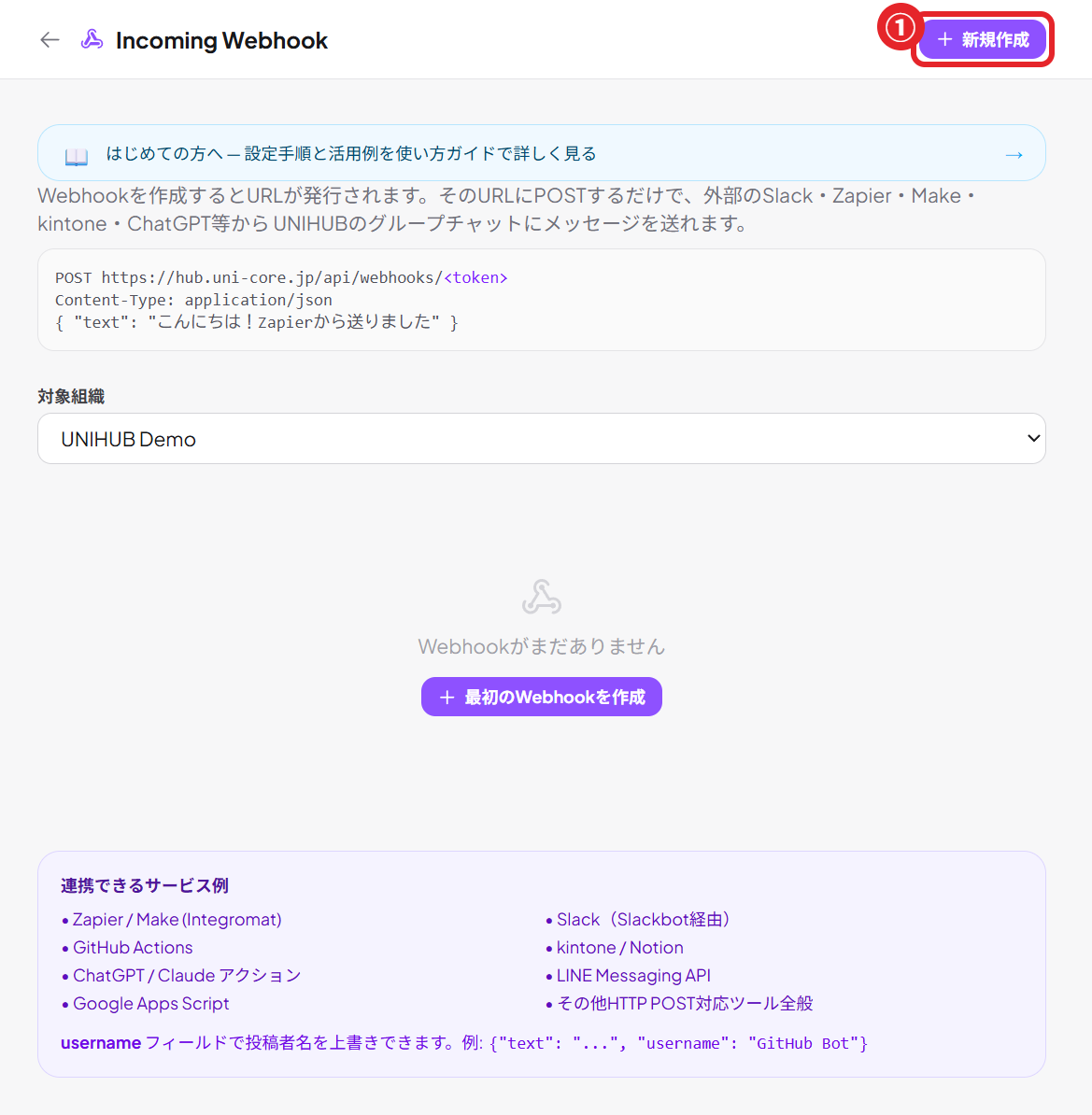
Go to Settings → External services & webhooks → open "📣 Mentions (social media)".
Click "Create a new webhook URL," choose "📥 Activity only (don't post to chat)" as the destination, enter a name (for example, Mentions), and create it → copy the URL that appears.
Note: with "Activity only," mentions gather in 📥 Activity alone without cluttering your group chats.
2. Create a Google Alert (the side that finds mentions)
Open google.com/alerts and enter the terms you want to monitor in the search box. Combine several terms with OR (uppercase, ASCII) and wrap each term in " " for better precision.
"Your company" OR "Product name" OR "Founder name"
Show options → change Deliver to to "RSS feed" and create the alert. Click the 📶 RSS icon that appears in the list → copy the URL of the page that opens (https://www.google.com/alerts/feeds/…).
Note: if Deliver to is left as "Email," Make cannot read it. Be sure to choose "RSS feed." Unneeded alerts created by mistake (your own email address, etc.) can be deleted with the trash icon.
3. Connect with Make (RSS → UNIHUB)
Sign up for free at make.com → top right "Create a new scenario". Build from the first large circle (+).
3-1. First module: RSS
- → search
RSS→ choose "Watch RSS feed items".
- URL: the Google Alerts RSS URL you copied in step 2
- Maximum number of returned items: 10
- After saving, for "Choose where to start" pick "From now on"
3-2. Second module: HTTP
From the + to the right of the RSS circle → search HTTP → "Make a request". Configure it as follows.
- Authentication type: None
- URL: the UNIHUB webhook URL you copied in step 1
- Method: POST (change it from GET; easy to forget!)
- Headers: Add a header → Name
Content-Type/ Valueapplication/json - Body content type: application/json
- Body input method: JSON string (this replaces Raw; there is no item called Raw)
3-3. JSON to paste into the body (Body content)
Paste the following into "Body content" and replace ★TITLE★ and ★LINK★ (two places) with RSS variables.
{"card":{"source":"mention","title":"★TITLE★","fields":[{"label":"Source","value":"Web"}],"href":"★LINK★","source_ref":"mention:★LINK★"}}
⚠️ Replacing the variables (the most important part)
★TITLE★→ RSS "Title"★LINK★(two places) → RSS "URL"The variable for the article link is "URL," not "Link" (that is how Make names it). Keep the surrounding
"(double quotes); select and delete only the ★ text, then click the variable to insert it.
Click Save at the bottom right to save the HTTP module.
4. Interval, ON, and testing
Interval: click "Every 15 minutes" at the bottom left → set it to "1 hour" to "3 hours". Mention monitoring does not need to be real-time, and this keeps you within the free tier.
ON: flip the toggle switch at the bottom left (to the left of "Every…") to ON. It now runs automatically ("Run once" is for manual testing and is a separate thing).
💡 To test it right now
The mention feed is empty until a mention appears, so pressing "Run once" does nothing (that is normal). To test, temporarily replace the URL in the RSS module with a public feed that always has articles:
https://b.hatena.ne.jp/hotentry/all.rss→ Save → "Run once" → if an article card appears under "Mentions" in 📥 Activity, it works. Once confirmed, remember to switch the URL back to the Google Alerts one.
About cost (it runs for free)
- Make's free plan = 1,000 operations per month and up to 2 active scenarios.
- If you use them up, it simply pauses until next month. You are never charged automatically (paid only if you upgrade yourself).
- To save operations, use a longer check interval (1 to 3 hours). Mentions themselves are rare, so consumption is minimal.
Common pitfalls
Nothing happens when I press "Run once"
If the mention feed is still empty (zero mentions), there is nothing to send, so this is normal. Try the "test it right now" method in step 4 (temporarily switch to a public feed).
There is no "Link" variable
In Make, the variable for the article link is called "URL." Choose "URL," not Link.
There is no item called "Raw"
"JSON string" under Body input method means the same as Raw. Choose it and you can paste the JSON as is.
The destination is still GET
Be sure to change Method to "POST." With GET, nothing arrives.
It also posts to chat
When creating the webhook, set the destination to "📥 Activity only" and mentions gather in 📥 Activity only, without appearing in group chats.
I also want to catch X (Twitter) and Instagram
POST to the same webhook from the Twitter and Instagram triggers in Make or Zapier. Note that the X API is now almost entirely paid, so we recommend starting with Google Alerts (the web in general).
Start with the receiving end
Create a webhook URL for mention monitoring in UNIHUB