Integrations guide
How this is used in practiceCh. 5 Connecting external tools
Screenshots show the Japanese screens; the English screens have the same layout.
Step-by-step setup for connecting UNIHUB to the business tools you already use, including Stripe, GitHub, LINE, calendars, Zoom, and webhooks.
Incoming Webhook (external → UNIHUB)
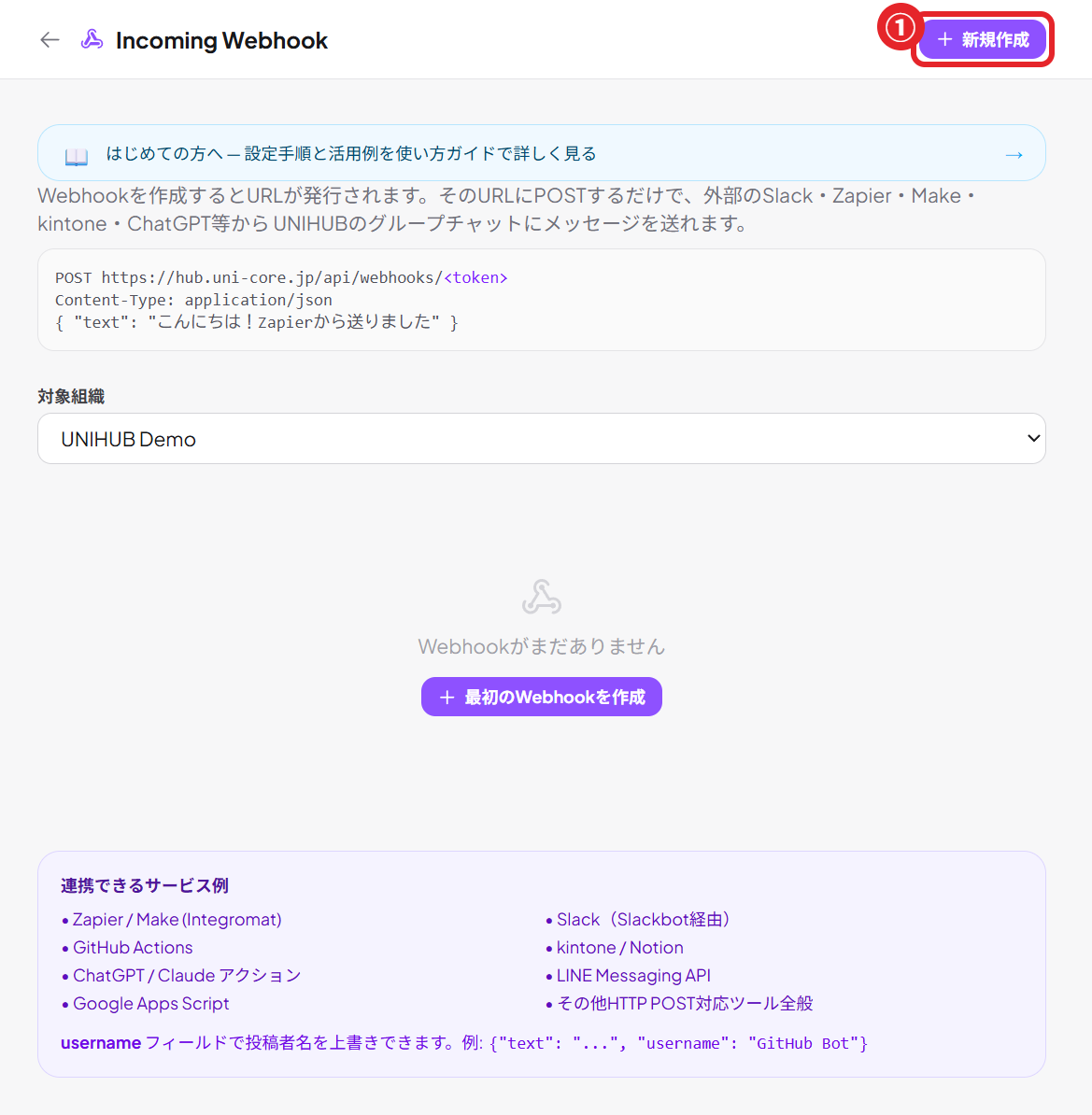
Post to UNIHUB automatically from external services such as Zapier and Make
Setup
- Go to Settings → External services & webhooks → Incoming Webhook
- Click "New" to create a webhook URL
- Paste that URL into the "Webhook" action in Zapier or Make
- Send a payload such as
{"text": "Your message"}and it is posted
Examples
- Get Google Forms responses in real time
- Post completed Stripe payments to a group chat
- Get notified when a record is added in kintone
- Chain several services together with Zapier
Tip: The Slack-compatible format is supported, so workflows you built for Slack work as they are.
Stripe integration (order alerts)
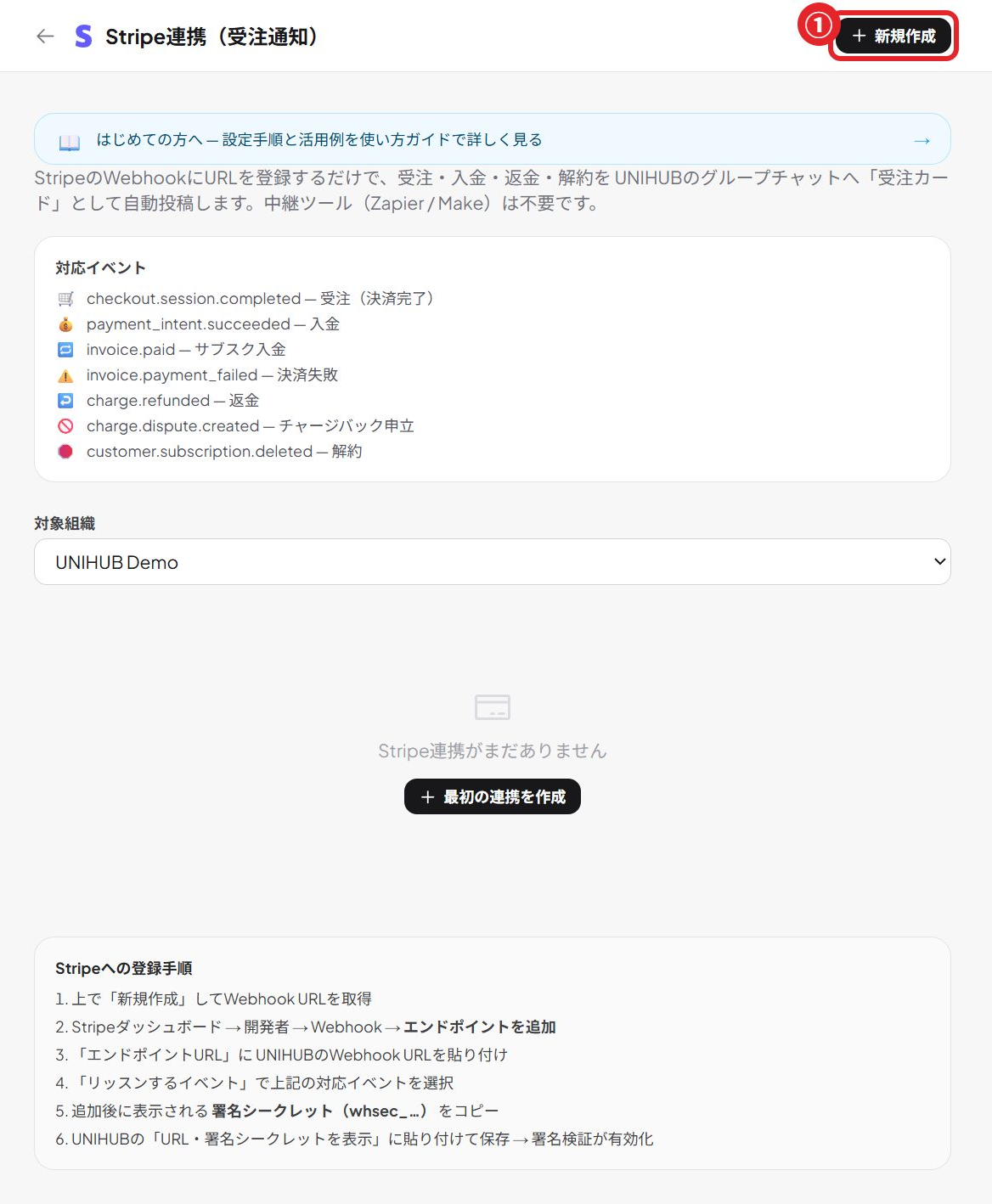
Orders, payments, refunds, and cancellations are posted to a group chat automatically as "order cards." No middleware needed, with signature verification
Setup
- Go to Settings → External services & webhooks → Stripe (order alerts) → click "New" to create a webhook URL
- In the Stripe dashboard, go to Developers → Webhooks → "Add endpoint" and paste the URL
- Under "Select events to listen to", choose events such as checkout.session.completed
- Copy the signing secret (whsec_…) shown after the endpoint is added
- Paste it into "Show URL & signing secret" in UNIHUB and save → signature verification is turned on
Events that are posted
| Event | Meaning |
|---|---|
checkout.session.completed | Order (payment completed) |
payment_intent.succeeded | Payment received |
invoice.paid | Subscription payment received |
invoice.payment_failed | Payment failed |
charge.refunded | Refund |
customer.subscription.deleted | Cancellation |
Examples
- Notify the sales group chat of new orders in real time
- Track subscription payments and cancellations in the accounting group chat
- Detect refunds and chargebacks right away and respond
- Connect directly, with no middleware (Zapier / Make)
Tip: Registering the signing secret (whsec_…) turns on signature verification, which blocks spoofed posts. The same order is handled idempotently and is never posted twice.
Set up the Stripe integration →
Outgoing Webhook (UNIHUB → external)
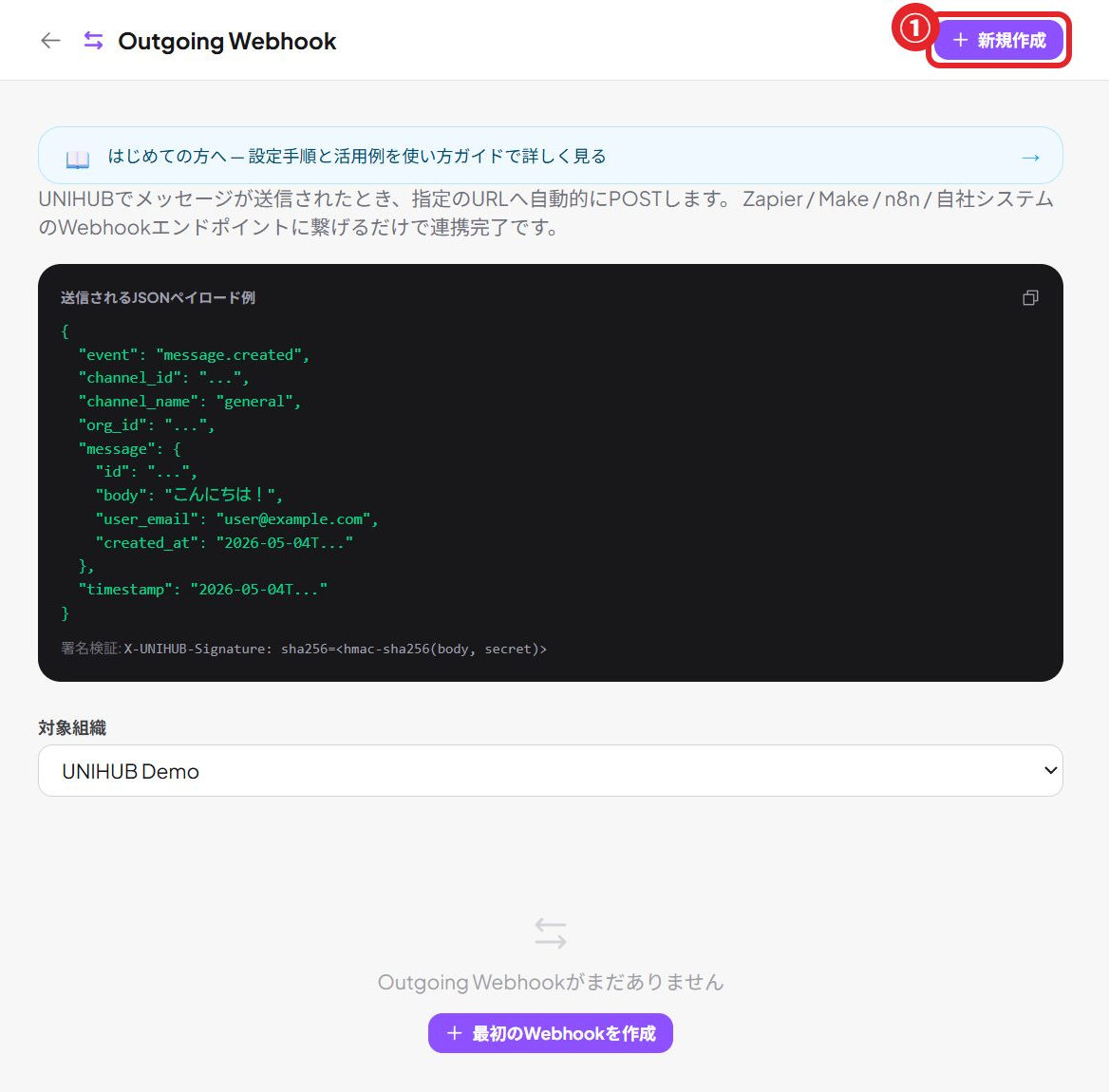
Forward posts from a UNIHUB group chat to an external URL in real time
Setup
- Go to Settings → External services & webhooks → Outgoing Webhook
- Click "New" and set the destination URL and the group chat
- Every time someone posts in that group chat, the data is sent to the URL you set
Examples
- Forward UNIHUB posts to a Discord group
- Sync messages from a specific group chat to Slack
- Receive them in Make and log them to Notion automatically
- Feed your own systems in real time
Tip: For Discord, just set the Discord webhook URL (https://discord.com/api/webhooks/...) as the destination and it works right away.
Calendar sync (Google / Apple / Outlook)
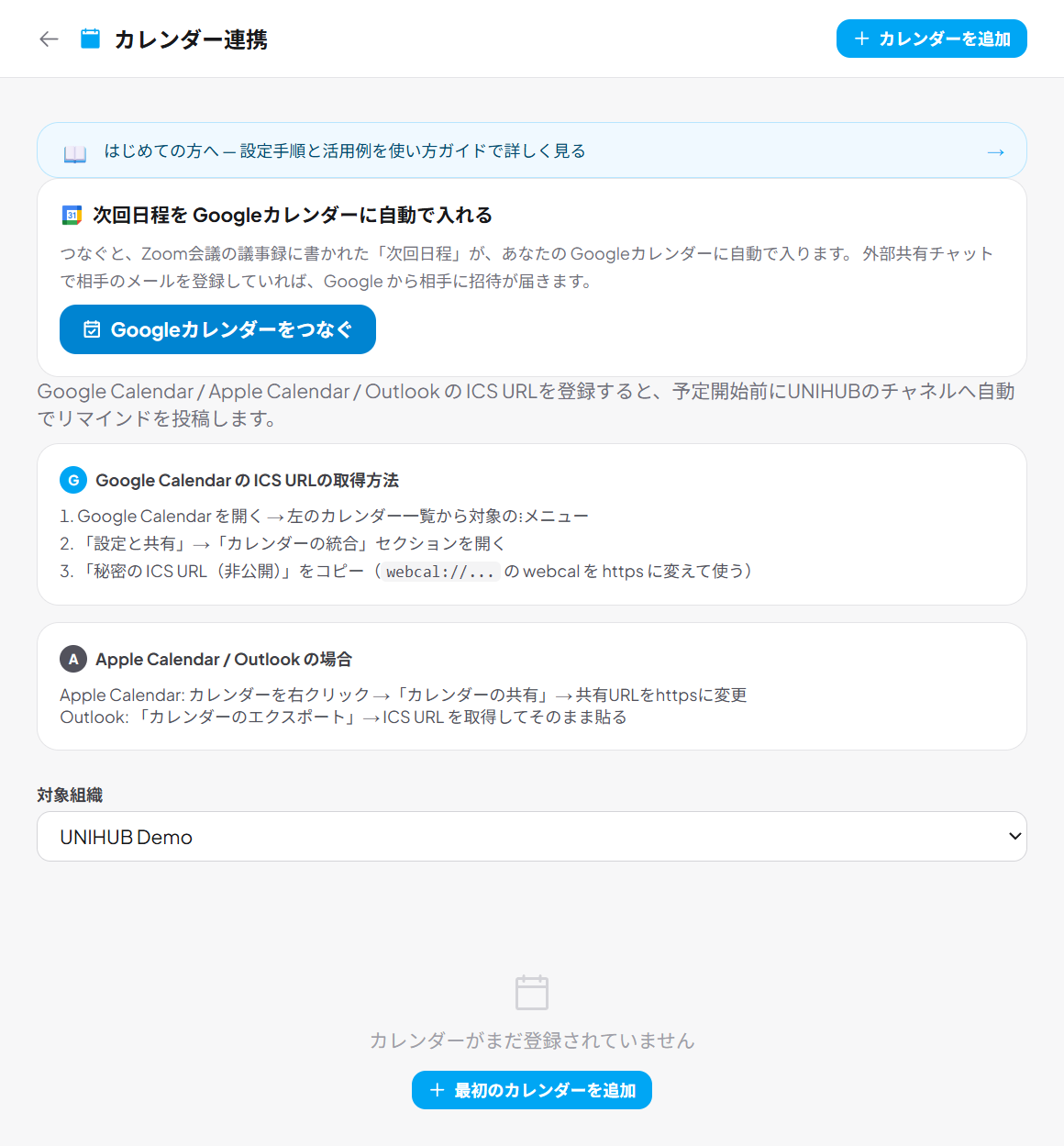
No OAuth needed. Paste an ICS link and get reminders for calendar events in a group chat
Setup
- In Google Calendar, go to Settings → the calendar you want → "Integrate calendar" → copy the "Secret address in iCal format" (the calendar's ICS address)
- Go to Settings → External services & webhooks → Calendar sync → "New"
- Paste the URL you copied, then choose the group chat to notify and the reminder time (5/10/15/30/60 minutes before)
- Save. The calendar is checked every 15 minutes and a post goes out automatically before each event
Examples
- Notify the group chat 15 minutes before stand-ups and regular meetings
- Manage several people's calendars in one group chat
- Apple Calendar and Outlook work the same way
- Share personal schedules with the team automatically
Tip: Google Calendar's "Secret address in iCal format" is a private URL. Be careful not to share it publicly.
GitHub integration
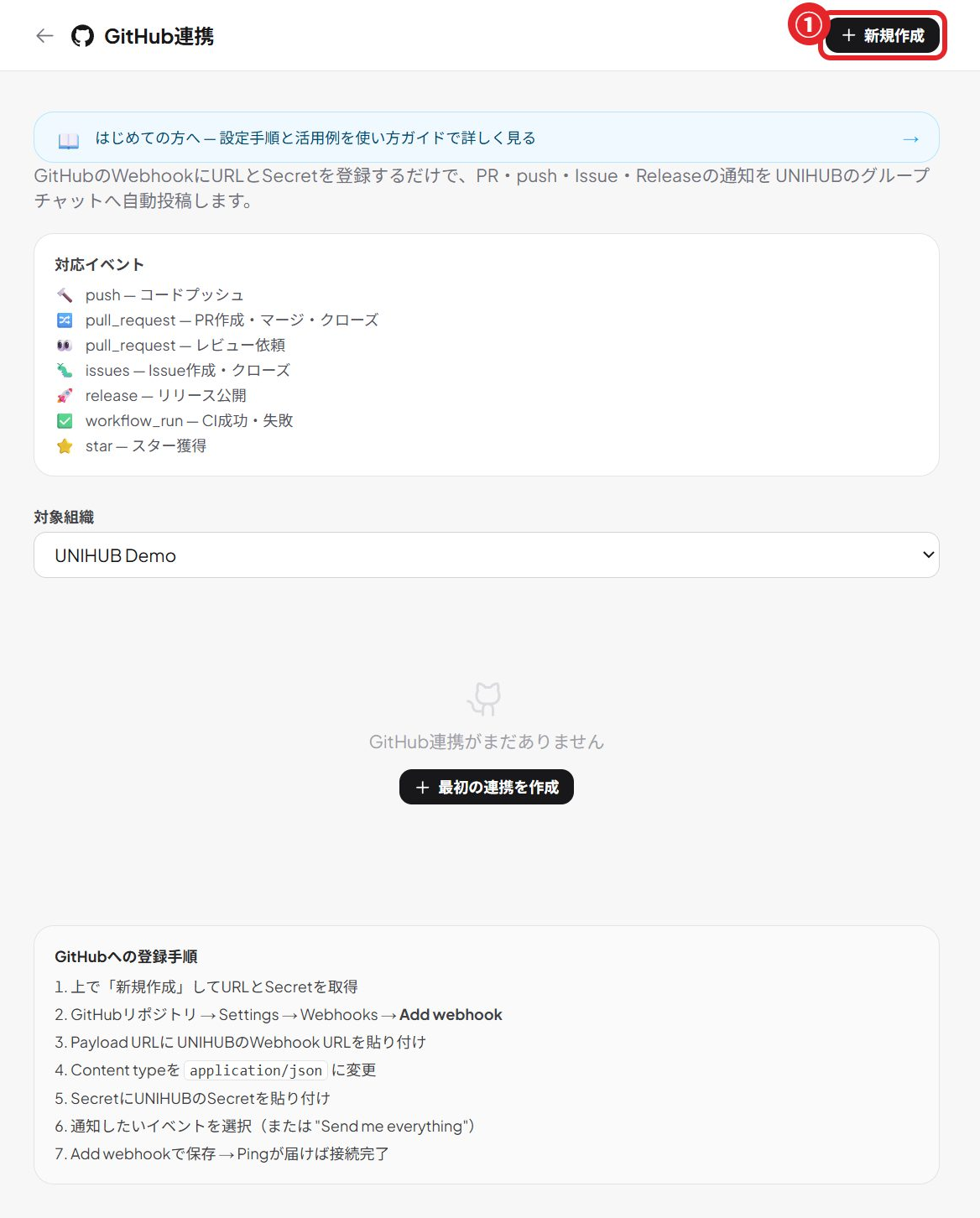
Real-time notifications in a group chat for pull requests, merges, pushes, issues, and CI results
Setup
- Go to Settings → External services & webhooks → GitHub → click "New" to create a webhook
- Copy the "URL and secret"
- In your GitHub repository, go to Settings → Webhooks → Add webhook
- Paste the URL into Payload URL and the secret into Secret
- Choose "Content type: application/json", select the events you want, and save
Events that are posted
| Event | Meaning |
|---|---|
push | Commits to a branch |
pull_request | PR opened, merged, or closed |
issues | Issue opened or closed |
release | Release published |
workflow_run | CI succeeded or failed |
star | New star |
Examples
- Notify the dev group chat when a PR is opened or merged
- See CI success or failure right in the group chat
- Post the contents of pushed commits automatically
- Alert the responsible group chat when an issue is opened
Tip: Set a "Repository filter" to receive notifications from specific repositories only (for example, myorg/myrepo).
Set up the GitHub integration →
LINE integration (two-way)
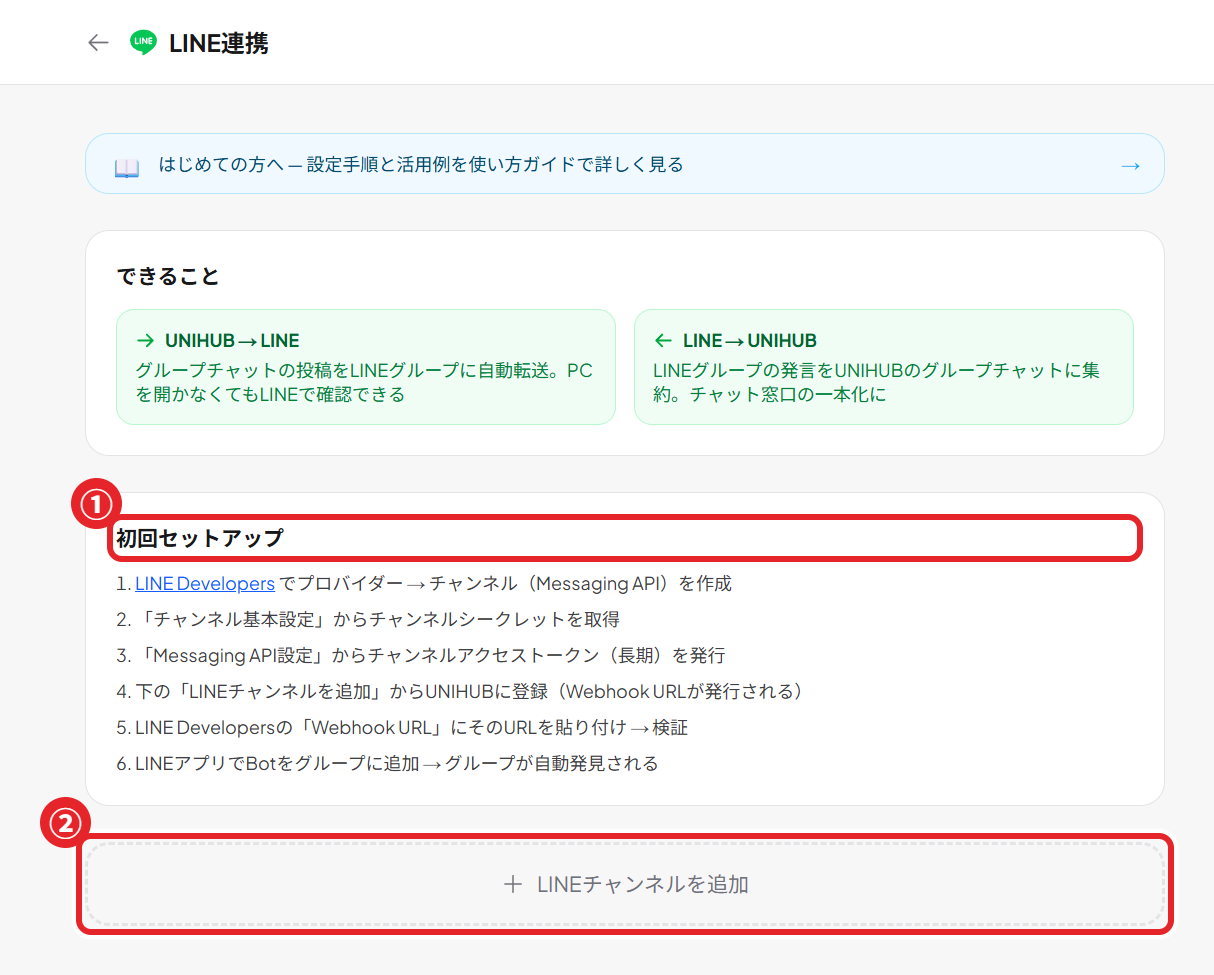
Collect messages from LINE groups in UNIHUB, and forward UNIHUB posts to LINE groups (LINE is Japan's most widely used messaging app)
Setup
- In LINE Developers (developers.line.biz), create a provider and a Messaging API channel
- Get the channel secret (Basic settings) and a channel access token (Messaging API settings → long-lived)
- Go to Settings → External services & webhooks → LINE → register the channel in UNIHUB with "Add LINE channel"
- Register the webhook URL that was generated as the Webhook URL in LINE Developers and click "Verify"
- Add the LINE Official Account to a LINE group. When someone sends a message, the group is discovered automatically
- For each discovered group, set the direction: "UNIHUB → LINE" and/or "LINE → UNIHUB"
The two directions
- UNIHUB → LINE: Posts in the UNIHUB group chat you choose are forwarded automatically to the LINE group. Get notifications on LINE without opening your PC
- LINE → UNIHUB: Messages in the LINE group are collected in the UNIHUB group chat you choose. Useful for consolidating inquiry channels
Tip: LINE Notify was discontinued in March 2025. This feature, built on the LINE Messaging API, is its successor.
Zoom integration
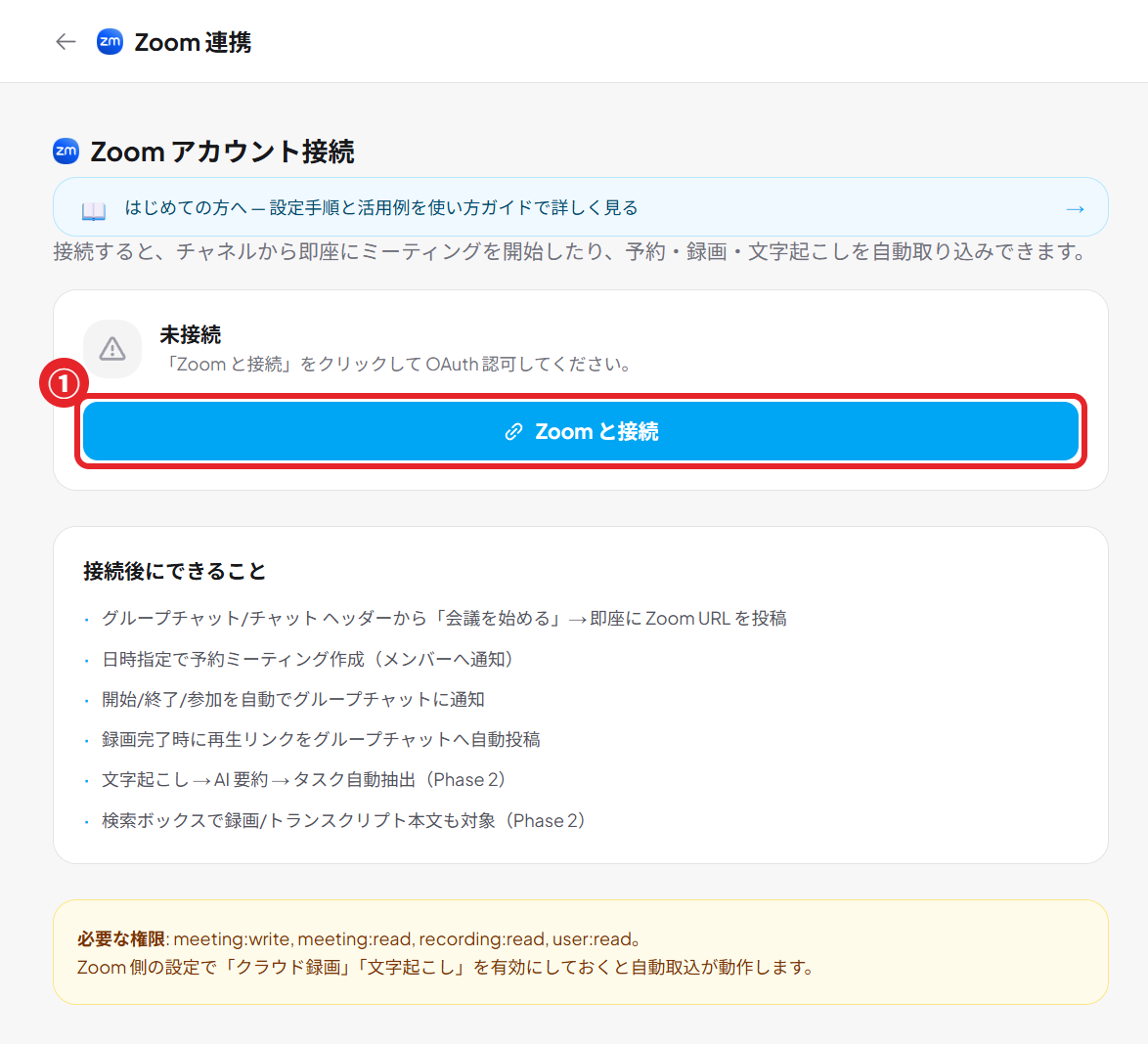
Start or schedule a Zoom meeting instantly from a channel or DM. Recordings and transcripts are pulled into the group chat automatically
Setup
- Go to Settings → Zoom
- Click "Connect Zoom account" and log in to Zoom with OAuth to grant access
- From the channel or DM menu, choose "Start or schedule a Zoom meeting" to start one now or schedule it for a date and time
- The meeting link is posted to that group chat automatically
- When the recording and transcript are ready, they are pulled into the group chat automatically
Examples
- Start stand-ups and sales calls with one click and share the link automatically
- Review recordings and transcripts later in the group chat
- Set up regular meetings automatically with scheduled meetings
- Turn transcripts into meeting notes with the AI feature "Clean up transcript"
Tip: Combine the recording transcript with the AI feature "Clean up transcript" and you get readable meeting notes right away.
All integration settings in one place
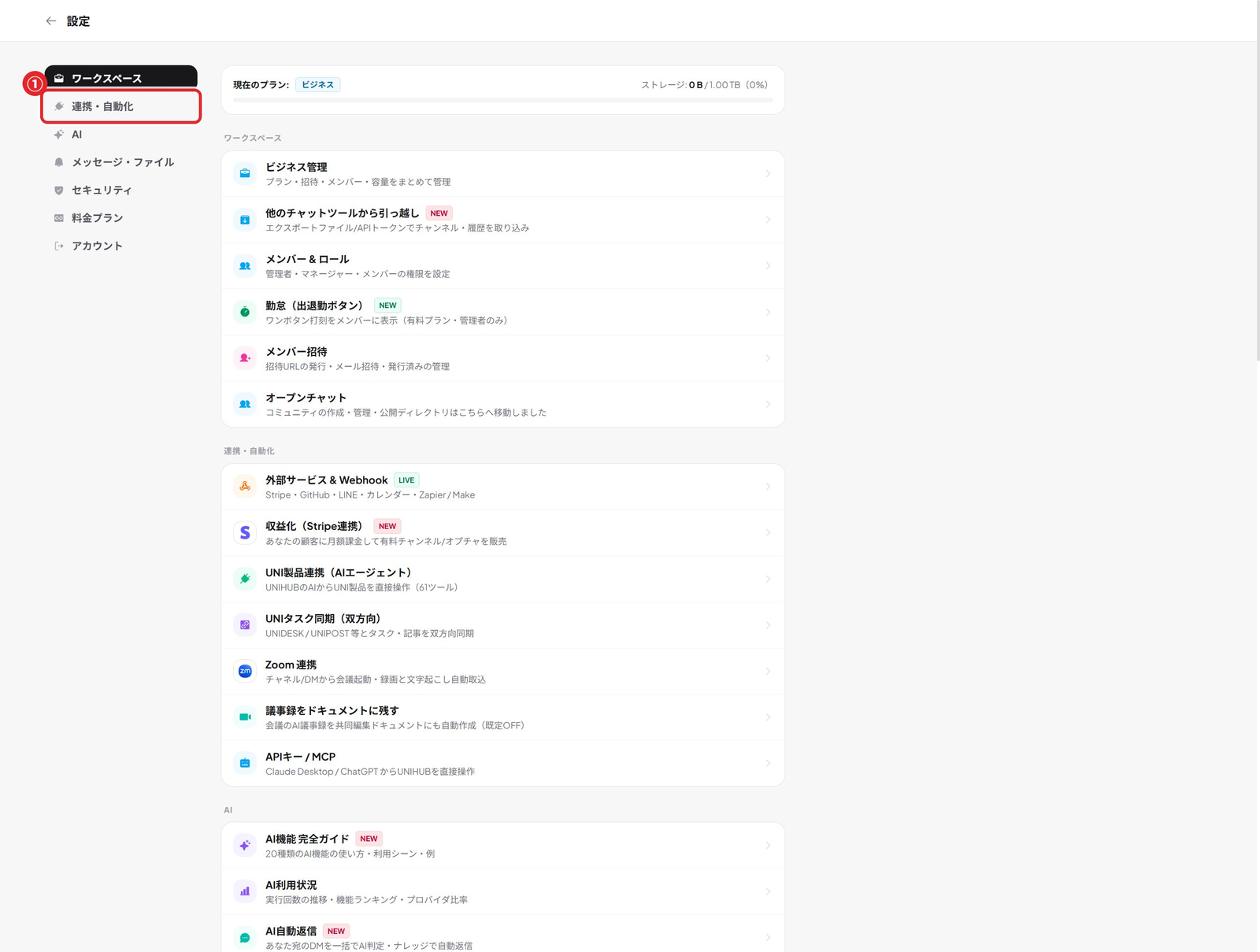
Manage every integration from one list in Settings